

Overview
Vayu provides multiple ways to manage customer records, including creating new customers, updating existing profiles, and removing customer data when needed.Creating customers
Through the UI
To create a new customer: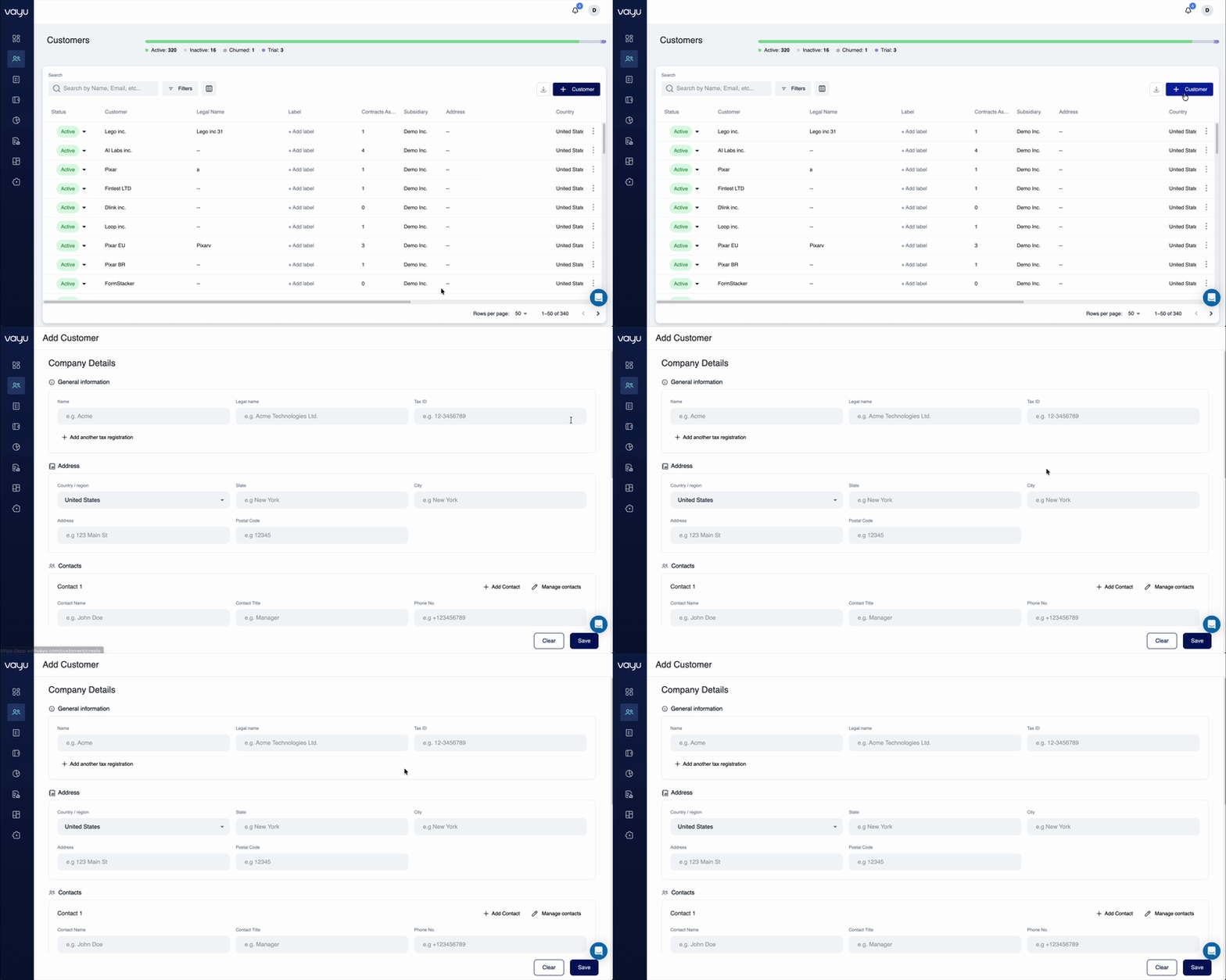
- Navigate to Customers
- Click + Customer in the control bar
- Fill in the customer details:
- Name and legal name
- Contact information
- Billing address
- Tax ID
- Currency
- Payment terms (due days)
- Custom fields
- Save the customer profile
Through the API
Use thePOST /customers endpoint to create customers programmatically:
Updating customers
Through the UI
To create a new customer:- Navigate to Customers
- Click + Customer in the control bar
- Fill in the customer details:
- Name and legal name
- Contact information
- Billing address
- Tax ID
- Currency
- Payment terms (due days)
- Custom fields
- Save the customer profile
Through the API
Use thePOST /customers endpoint to create customers programmatically:
Updating customers
Through the UI
- Navigate to Customers
- Select the customer from the table
- Go to the Settings tab
- Modify the fields you need to update
- Save your changes
Through the API
Use thePUT /customers/{customerId} endpoint to update customer records:
Deleting customers
Through the API
Use theDELETE /customers/{customerId} endpoint to remove a customer:
Important considerations
When deleting a customer:- The deletion is permanent and cannot be undone
- All associated data (contracts, invoices, usage) will be affected
- Consider the impact on historical reporting and audit trails
- Ensure compliance with data retention policies
Searching and filtering
The Customers page provides powerful search and filter capabilities:Global search
Use the search field to find customers by:- Customer name
- Email address
- Other indexed fields
Advanced filtering
Click Filters to build complex queries using:- Status - Active, Inactive, Churned, Trial
- Parent Customer - Filter by hierarchy relationships
- Address fields - Country, State, City, Postal Code
- Subsidiary - Filter by subsidiary assignment
- Manual Review - Flag status
Exporting customer data
To export customer information:
- Apply any desired filters
- Click the Export / Download button next to the + Create Customer button
- Download the file
API reference
For complete API documentation, see: To update an existing customer:- Navigate to Customers
- Select the customer from the table
- Go to the Settings tab
- Modify the fields you need to update
- Save your changes
Through the API
Use thePUT /customers/{customerId} endpoint to update customer records:
Deleting customers
Through the API
Use theDELETE /customers/{customerId} endpoint to remove a customer:
Important considerations
When deleting a customer:- The deletion is permanent and cannot be undone
- All associated data (contracts, invoices, usage) will be affected
- Consider the impact on historical reporting and audit trails
- Ensure compliance with data retention policies
Searching and filtering
The Customers page provides powerful search and filter capabilities:Global search
Use the search field to find customers by:- Customer name
- Email address
- Other indexed fields
Advanced filtering
Click Filters to build complex queries using:- Status - Active, Inactive, Churned, Trial
- Parent Customer - Filter by hierarchy relationships
- Address fields - Country, State, City, Postal Code
- Subsidiary - Filter by subsidiary assignment
- Manual Review - Flag status
Exporting customer data
To export customer information:- Apply any desired filters
- Click the Export / Download button next to the + Create Customer button
- Download the file