How to Create a Contract
When you sign into Vayu, navigate to the lefthand-side menu. Find and select Plans & Pricing. Once there, you will be able to see all the plans you’ve created so far. To create a new plan, go to the top right of the plans list and select the + Create button.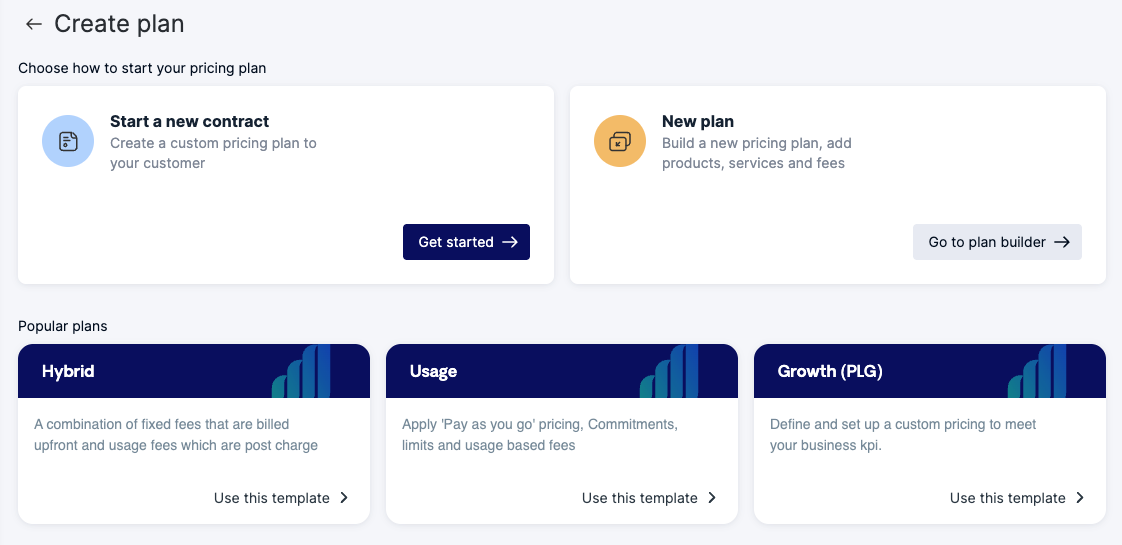

- Any range of months
- Evergreen
- Calendar-Aligned with Proration – Billing aligns to calendar intervals (e.g., 1st–31st of each month). If a contract starts mid-period, a prorated invoice is issued for the partial period.
Example: Contract starts March 15 → Prorated invoice for Mar 15–31, then regular monthly billing from Apr 1. - Pro Rata – Billing follows the contract start date (e.g. Mar 15–Apr 14, Apr 15–May 14). Changes or early termination will generate prorated charges for partial usage.
Example: If the contract terminates June 10, then the final invoice is prorated for May 15–June 10. - No Proration – Invoices will not be adjusted for partial periods. Customers are charged the full amount for the billing interval, regardless of when the contract starts, changes, or ends.
Example: If the contract starts March 20, then the first invoice will still be for the full month of March.
Pricing & Products Page
On the Pricing & Products page, you will have the opportunity to add the following:- Service fees
- Usage-based fees
- Credits & discounts
Service Fees
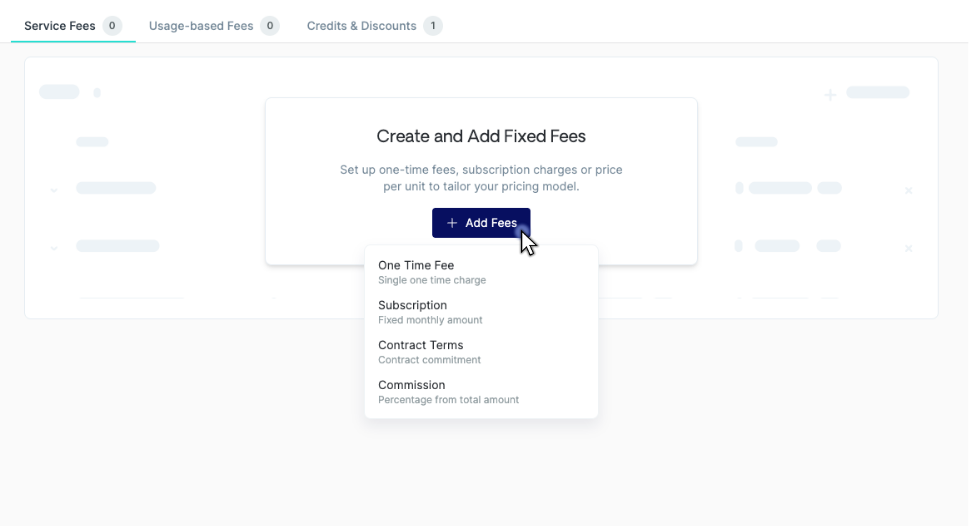
- One Time Fee
- Subscription
- Contract Terms
- Commission
Usage-Based Fees
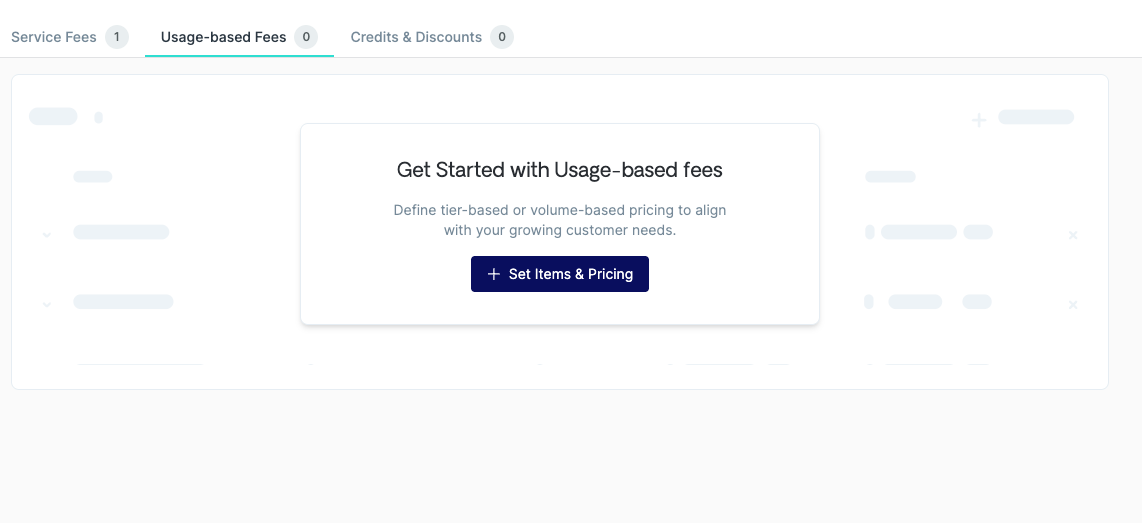
- Tiered
- Volume
- Per Unit
- Revenue Share
- Tiered Subscription
Credits & Discounts
On the Credits & Discounts page, you may add discounts and credits at the contract level (discounts & credits can be applied at the product level as well).Go to the white box titled Credits & Discounts, then select the dark blue + Add Promotions button: You will have three initial options to configure:
- Credits - Usage fees
- Percentage Discount
- Metered Credit
If you forget to fill these in when applying a credit or discount, you will be prompted to go back.
- Issue as a Separate Invoice – Generate a dedicated invoice for this product, separate from other charges
- Add Product Description – Include a custom line-item description on the invoice
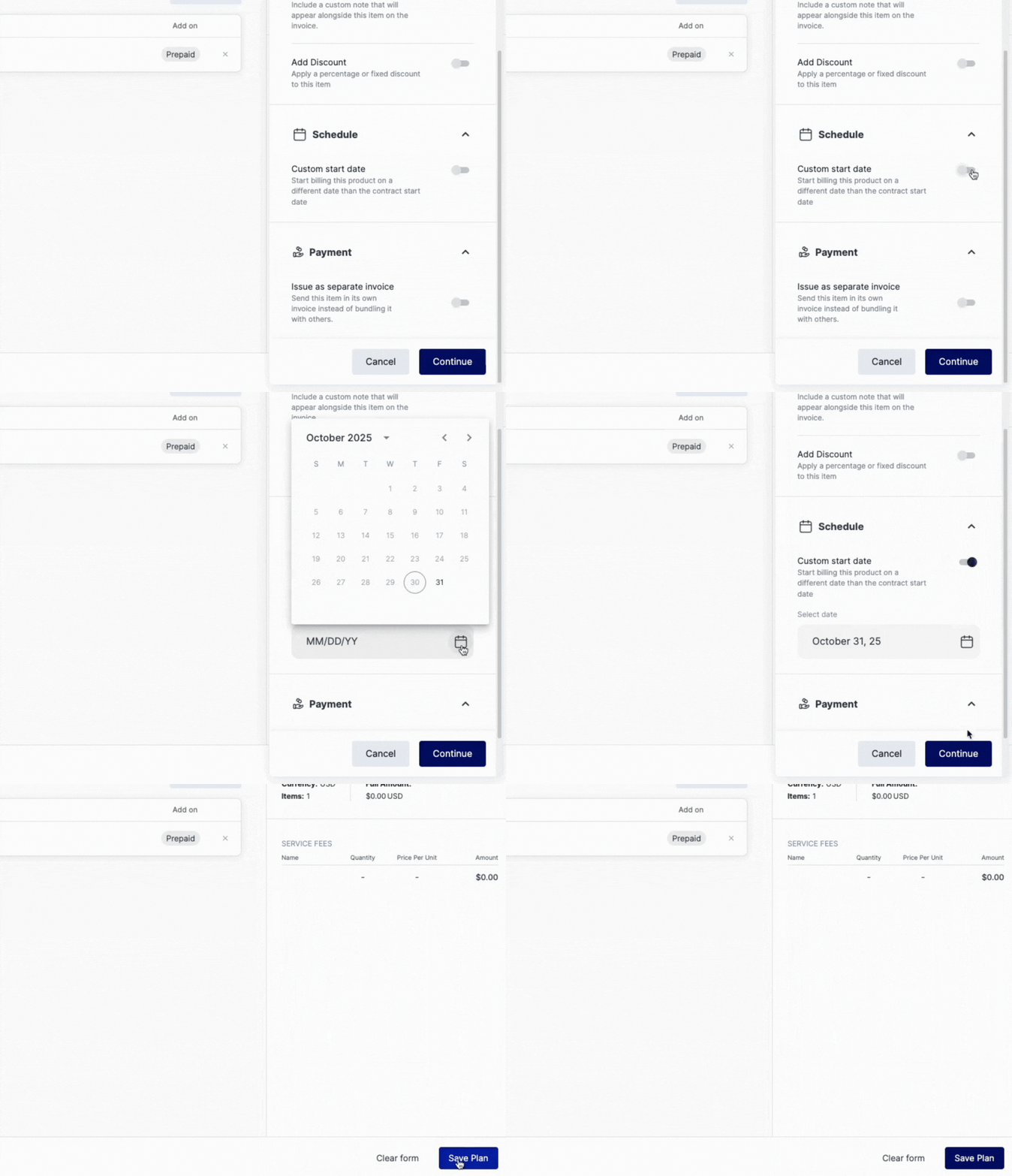
- Custom Start Date – Override the contract start date for this specific product and start billing it on a different date.
Example: The contract starts Mar 1, but the product begins Apr 1 → Invoicing for this product will start on Apr 1. - Add Discount – Apply a fixed amount or percentage discount to the product
Note: Discount options vary by product type. For example, recurring discounts are available for subscription products.
Sample Demo
In this quick demo, you can see how to add a service fee to your plan. From the white box titled Create & Add Fixed Fees, select the blue button + Add Fees. Select from the dropdown one of four fee types: one time fee, subscription, contract terms, or a commission. Next, click the gray Modify button. Here, you can modify terms for Pricing Settings, Schedule, and Payment. Under Schedule, you can set the date for the plan to begin: