

- One-Time Fee
- Subscription
- Contract Terms
- Commission
One-Time Fee
A One-Time Fee is a fixed, single charge, typically used for things like setup, onboarding, implementation, or an upfront service charge (a contract can include multiple one-time fees).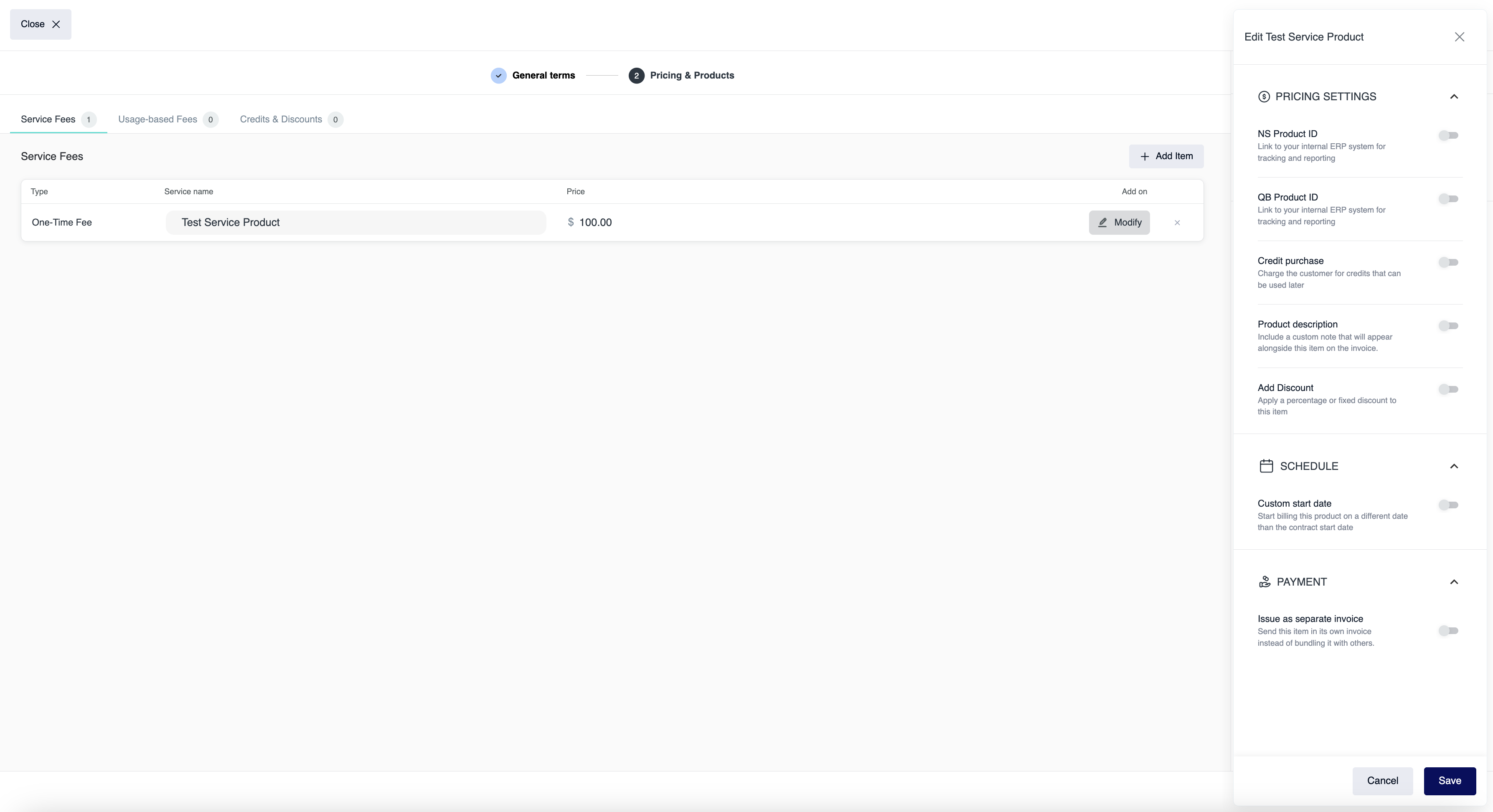
- Pricing Settings
- Credit Purchase
When enabled, the one-time fee is treated as a prepaid credit purchase (the customer pays upfront to receive credits that can be applied to future charges). - Product Description
A custom line-item description shown on the invoice to clarify what the fee is for. - Add Discount
Apply a discount to the one-time fee amount by a specified fixed amount or a specified percentage (%).
- Credit Purchase
- Schedule
- Custom Start Date
Controls when this one-time fee is billed by setting a specific charge date for the fee instance. By default, the fee is billed on the contract start date. - Custom Date Range
- Custom Start Date
- Payment
- Issue as Separate Invoice
When enabled, this one-time fee is billed on its own invoice instead of being grouped with other products on the same invoice.
- Issue as Separate Invoice
Subscription Pricing
A Subscription product is a fixed-fee product that generates a recurring charge on a defined billing interval (e.g., monthly, quarterly, yearly) for as long as the contract is active.It is commonly used for ongoing service charges like platform fees or support plans. Subscriptions can also be billed postpaid, allowing charges to be issued after usage has occurred rather than in advance. Click on Modify when creating the subscription plan so you can edit any default settings that you want. Modification options on a One-Time Fee Products:
- Pricing Settings
- Product Description – A custom line-item description shown on the invoice to clarify what the fee is for.
- Add Discount – Apply a discount to the subscription using a specified fixed amount or percentage (%). You can set how many recurring charges the discount applies to, or apply it to every subscription charge for the full duration of the subscription.
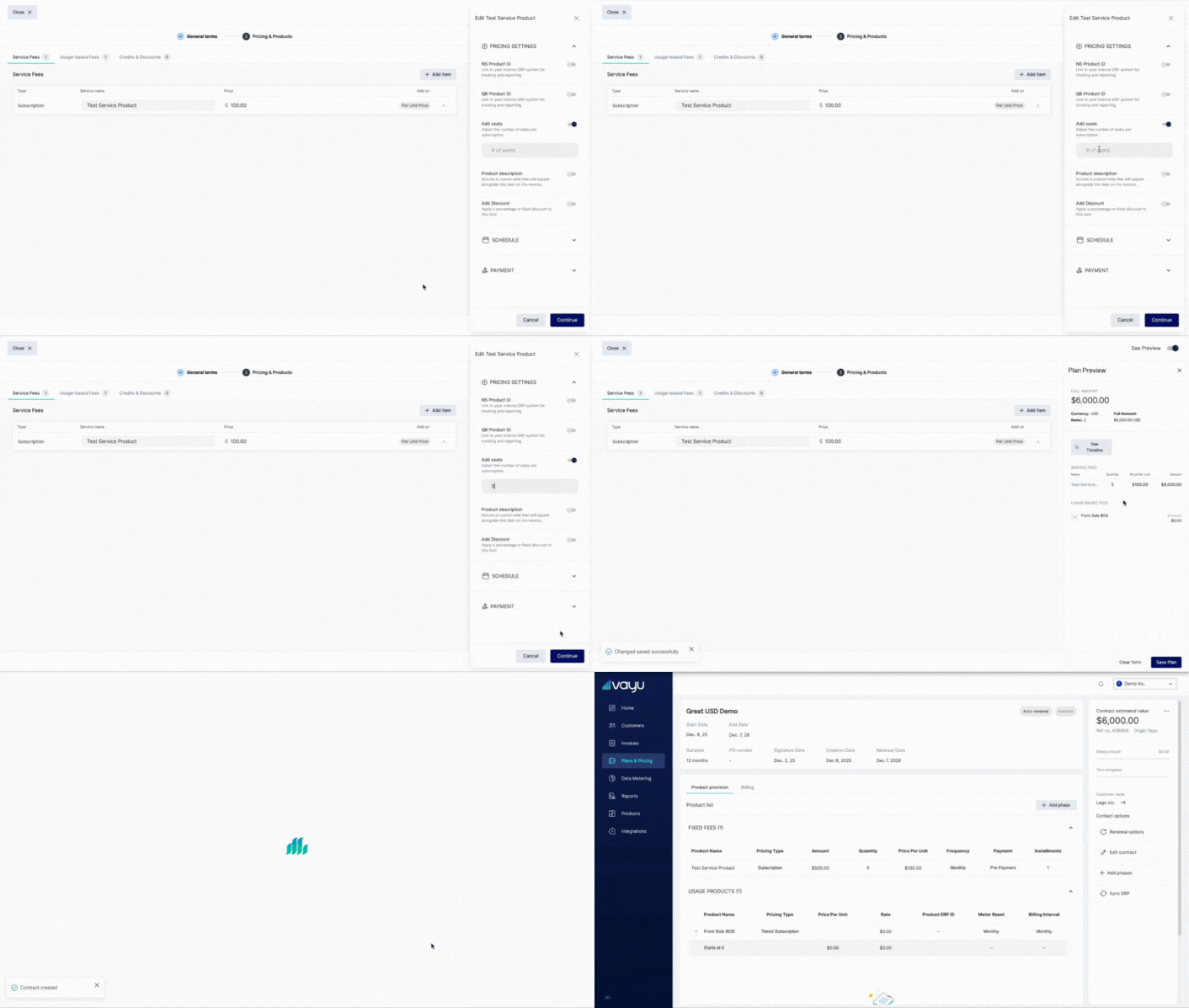
- Add Seats – Adding seats will multiply the price according to the number of seats added. So, if the subscription price is $100 per month, and you add five seats, the monthly price will be $500. The number of seats can be adjusted throughout the contract’s lifecycle.
- Schedule
- Period / Billing Interval – Period defines the time unit the subscription price applies to (e.g., a monthly price, quarterly price). Billing Interval defines how often Vayu generates the charge/invoice line for the subscription.
Example: If the subscription is $100 per month (Period = Monthly) and you bill every quarter (Billing Interval = Quarterly), Vayu will generate one charge every 3 months for $300 (3 × $100). By default, Subscriptions are set for a monthly period & monthly billing interval - Contract Upfront – When enabled, Vayu charges for the entire contract term upfront (based on the subscription’s monthly price), overriding the standard period and billing interval behavior.
- Custom Start Date – Controls when subscription billing begins by setting a specific start date for this product. Commonly used when billing should start after implementation is finalized or after a free trial period. By default, the subscription starts billing on the contract start date.
- Period / Billing Interval – Period defines the time unit the subscription price applies to (e.g., a monthly price, quarterly price). Billing Interval defines how often Vayu generates the charge/invoice line for the subscription.
- Payment
- Issue as Separate Invoice – When enabled, each subscription charge is billed on its own invoice instead of being grouped with other products on the same invoice.
Contract Terms
A pricing type that represents the contract’s total value. This might be paid upfront on a mutually agreed date for the entire contract period, or paid in installments. To add advanced installments to contract terms, click Modify as shown below. Select SCHEDULE, then Set advanced installments.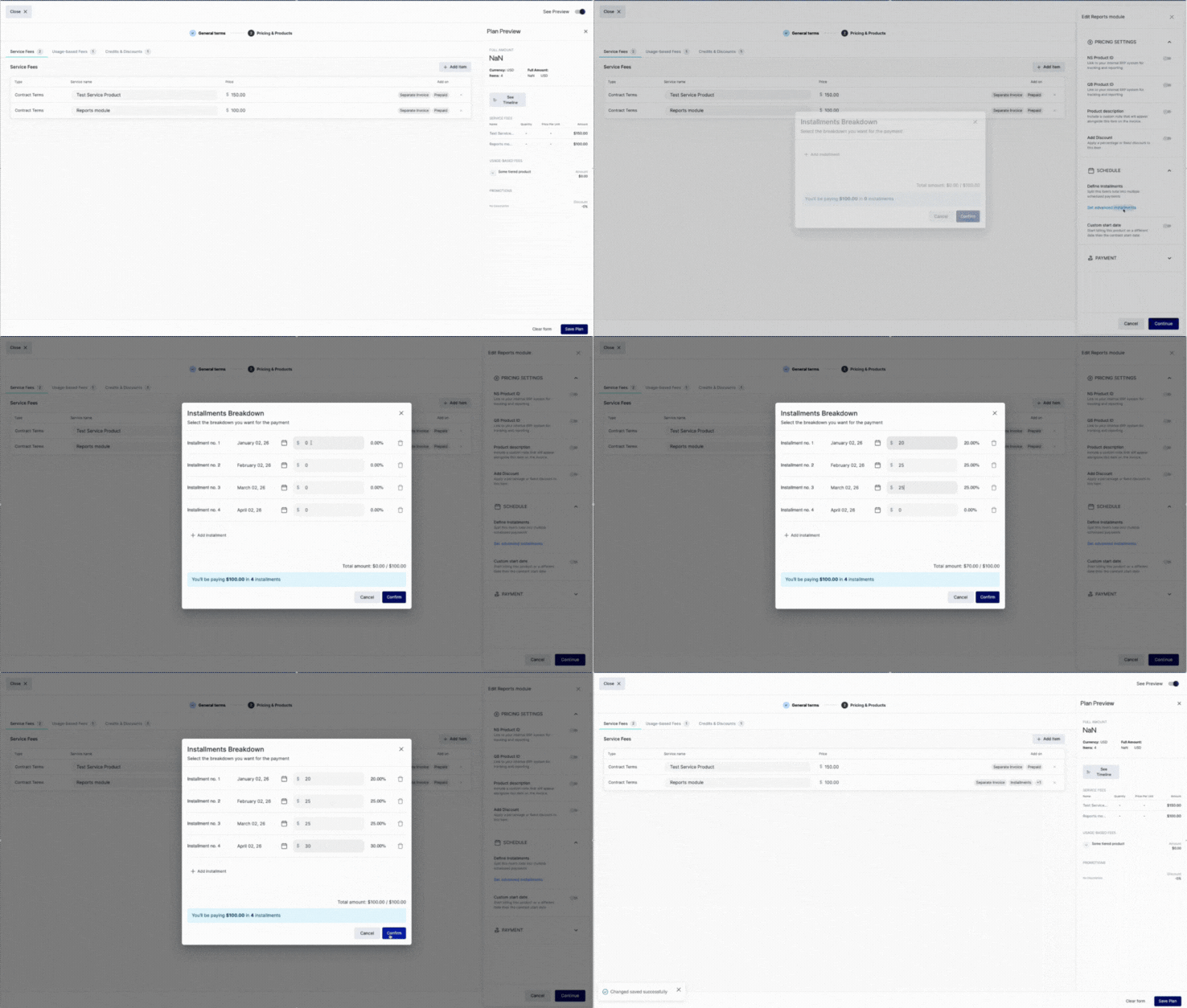
- Pricing Settings
- Product Description – A custom line-item description shown on the invoice to clarify what the fee is for.
- Add Discount – Apply a discount to the subscription using a specified fixed amount or percentage (%). You can set how many recurring charges the discount applies to, or apply it to every subscription charge for the full duration of the subscription.
- Schedule
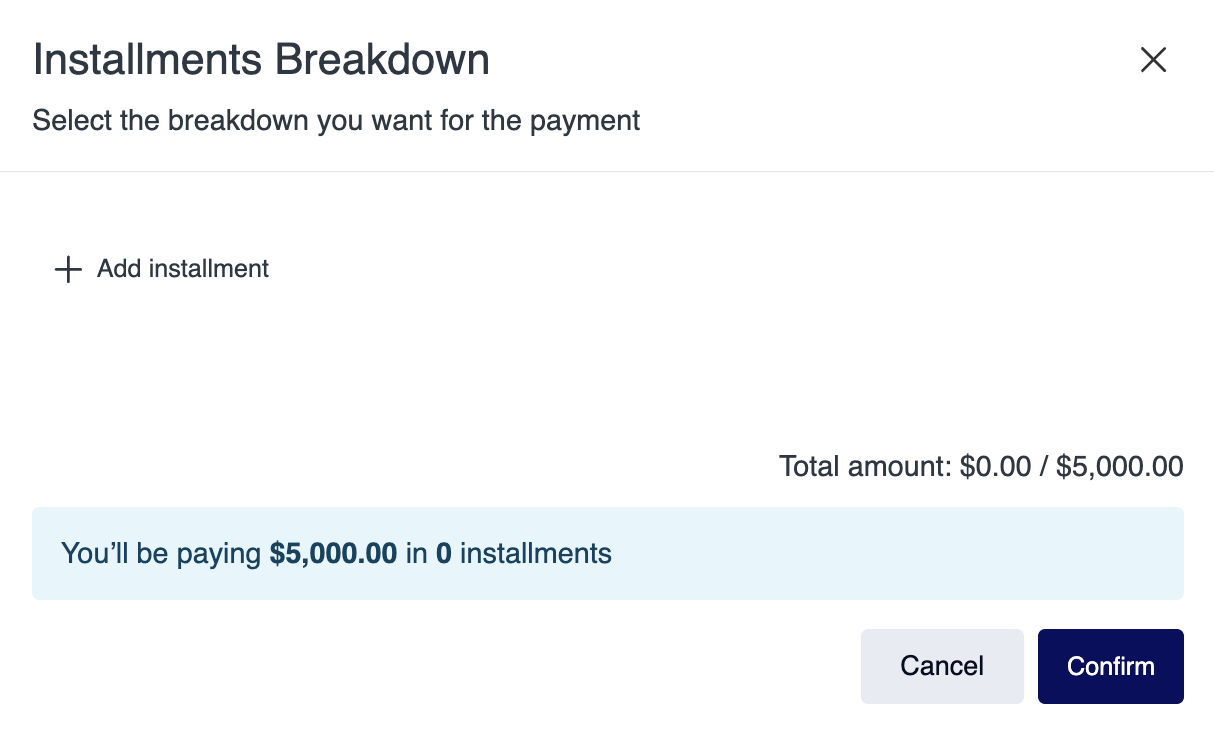
- Define Installments – Split this item’s total into multiple scheduled payments. Click on Set advanced installments to open the window below:
- Custom Start Date – Control when this one-time fee is billed by setting a specific charge date for the fee instance (By default, the fee is billed on the contract start date).
- Define Installments – Split this item’s total into multiple scheduled payments. Click on Set advanced installments to open the window below:
- Payment
- Issue as Separate Invoice – When enabled, this one-time fee is billed on its own invoice instead of being grouped with other products on the same invoice.
- Post Paid Subscription – Option to bull at the end of a period
Key Terms:
- Contract Start Date – The date the contract’s terms take effect (can be different from Signature Date)
- Contract Signature Date – The date the contract is signed by the customer (can be different from Start Date)
- Contract Term – The period during which the contract is active
Commission
Designate a percentage of the total as a commission in your plan. Commission adds an extra percentage on top of the final invoice total. It’s typically used to pass through processing fees such as credit card fees, where a fixed percent (for example, 2.9%) is applied to the entire amount due, as you can see in this example: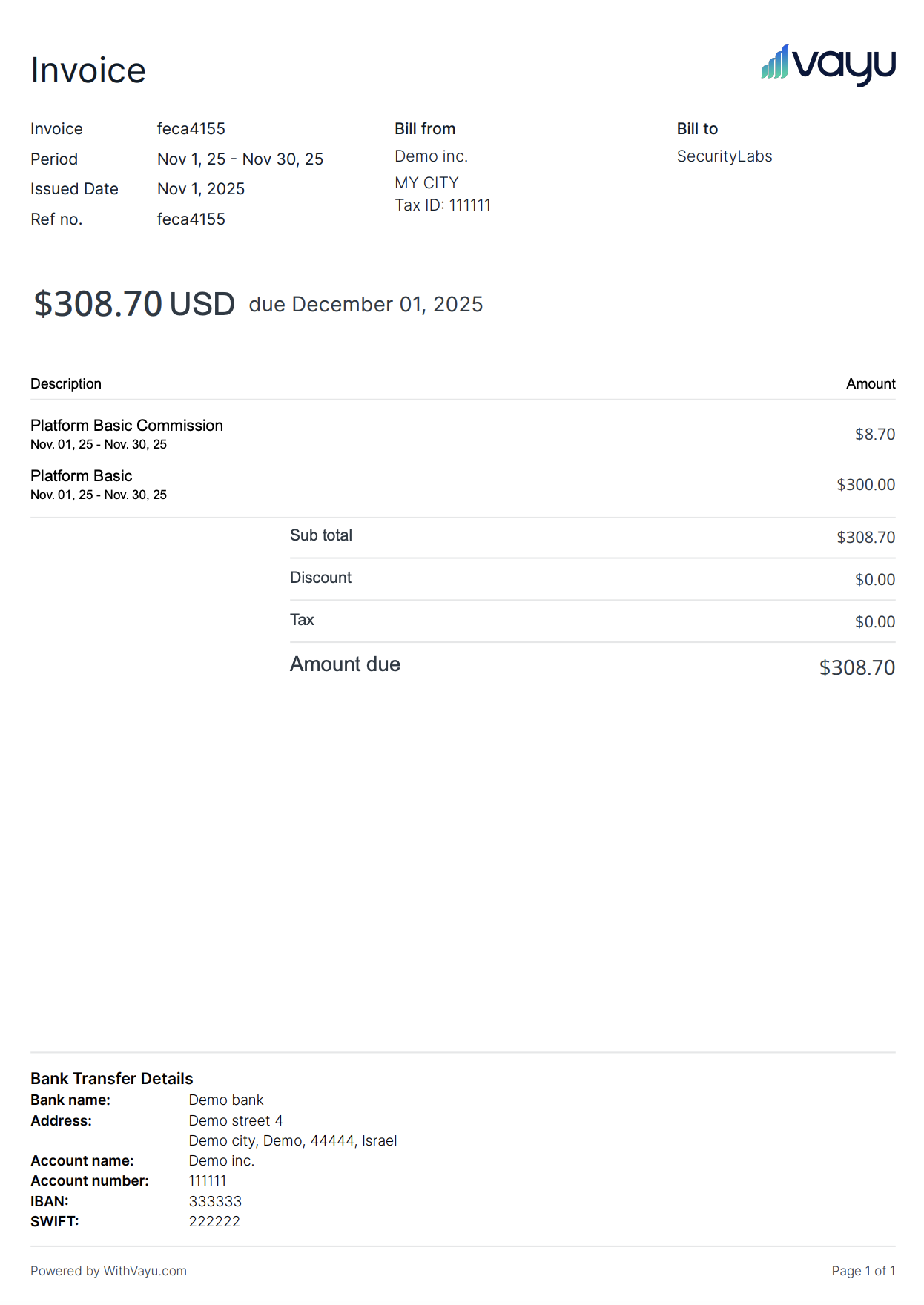
- Pricing Settings
- Product Description – A custom line-item description shown on the invoice to clarify what the fee is for.
Seat-Based Billing
Use seat-based billing to charge customers based on the number of users, licenses, or seats they provision in your product. This pricing model is common for SaaS applications where each user requires their own access. Seat-based billing multiplies a base subscription price by the number of seats provisioned: Formula:Subscription Price × Number of Seats = Total Charge
For example:
- Base subscription: $100/month
- Number of seats: 5
- Monthly charge: $500
- Navigate to Products and select your subscription product
- Click Modify when creating or editing the subscription plan
- Under Pricing Settings, select Add Seats
- Enter the number of seats
- The price will automatically multiply according to the seat count
Pricing settings with seats
When configuring a seat-based subscription, you can also set:- Product Description - Custom line-item description for the invoice
- Add Discount - Apply fixed amount or percentage discount
- Schedule Period / Billing Interval - Define billing frequency
- Contract Upfront - Charge for entire contract term upfront
- Custom Start Date - Set when billing begins
- Issue as Separate Invoice - Bill seats on their own invoice
Adjusting seats during the contract
The number of seats can be adjusted throughout the contract’s lifecycle:- Adding seats - Increases the monthly charge proportionally
- Removing seats - Decreases the monthly charge proportionally
- Mid-cycle changes - Pro-rated charges apply based on when the change occurs
Common Use CasesSeat-based billing is ideal for:
- Team collaboration tools - Slack, Microsoft Teams, Asana
- Project management software - Jira, Monday.com, Basecamp
- CRM platforms - Salesforce, HubSpot
- Design tools - Figma, Adobe Creative Cloud
- Development tools - GitHub, GitLab, CircleCI
- HR and payroll systems - Gusto, BambooHR