

Overview
The Vayu-QuickBooks integration supports two-way syncs, with data syncing from Vayu and other information from QuickBooks. You are given multiple options for syncing with the integration. You can opt for Manual Sync on a per-invoice basis, Bulk Sync for multiple-invoice approval in a single batch, and two different options for Auto Sync. You can implement Auto Sync by Invoice Issue Date or Auto Sync on Approval.From Vayu → QuickBooks
- Invoice Issuance: Syncs fixed, usage, or hybrid invoices for prepaid, post-paid, or mixed periods. Metadata includes period start/end, product lines, discounts, taxes, Vayu invoice#
- Credit Notes: For cancellations, refunds, overages, then reconciled/mapped to original invoice
- Payments: Pushes payment status (paid, partial, failed, etc.); reconciles invoices with payment records
- Refunds: Triggers refund issuance and sync refund metadata (amount, date, reason).
- Customer & Contract Sync: Links invoices to QuickBooks customers, optionally mapping Vayu contracts to Quickbooks projects, jobs, or contracts. Also syncs customer details (name, address, email, external IDs).
- Products / Items
- Sync Vayu products to ERP catalog for revenue mapping.
- Include metadata: product ID, SKU, revenue category, tax class.
- GL Account Mapping: Enables per-line or per-product mapping to QuickBooks chart of accounts (income, AR, tax).
- Custom Metadata: Syncs custom fields like Class, Department, and Tags for financial reporting or segmentation.
From QuickBooks → Vayu
- Invoice Status Updates: Retrieves updated status (Paid, Overdue, Voided) from QuickBook to sync back into Vayu.
- Customer Metadata: Pulls updates to customers
- Product Metadata: Pulls updates to product definitions (e.g., class assignments, GL mappings).
Prerequisites & Permissions
You’ll need the following to get started:- QuickBooks account
- Vayu account
- Permissions and Admin support
Connection & Setup
To launch initial setup and integrations, please contact the Vayu support team. From Vayu, click Connect to QuickBooks.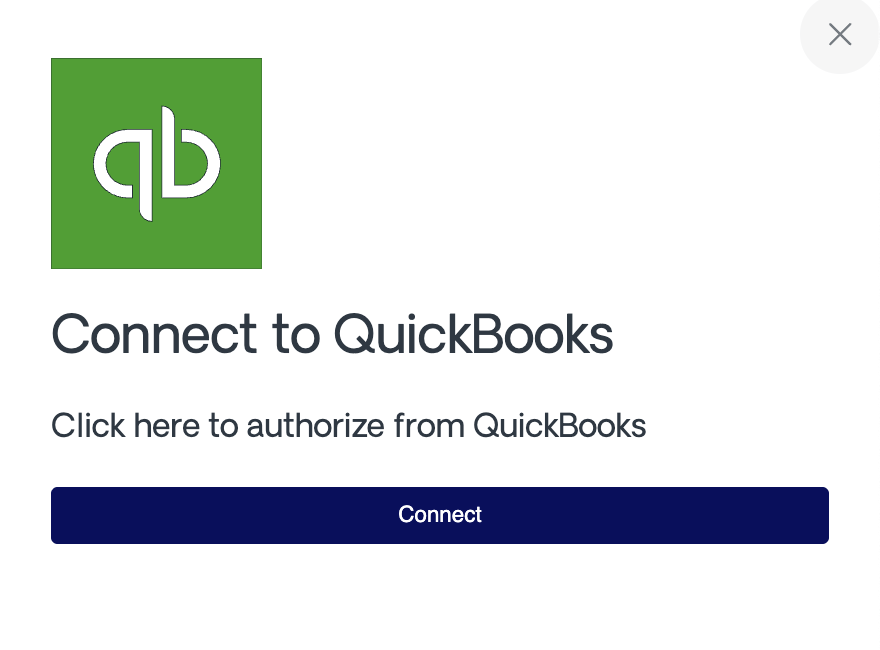
Configurations
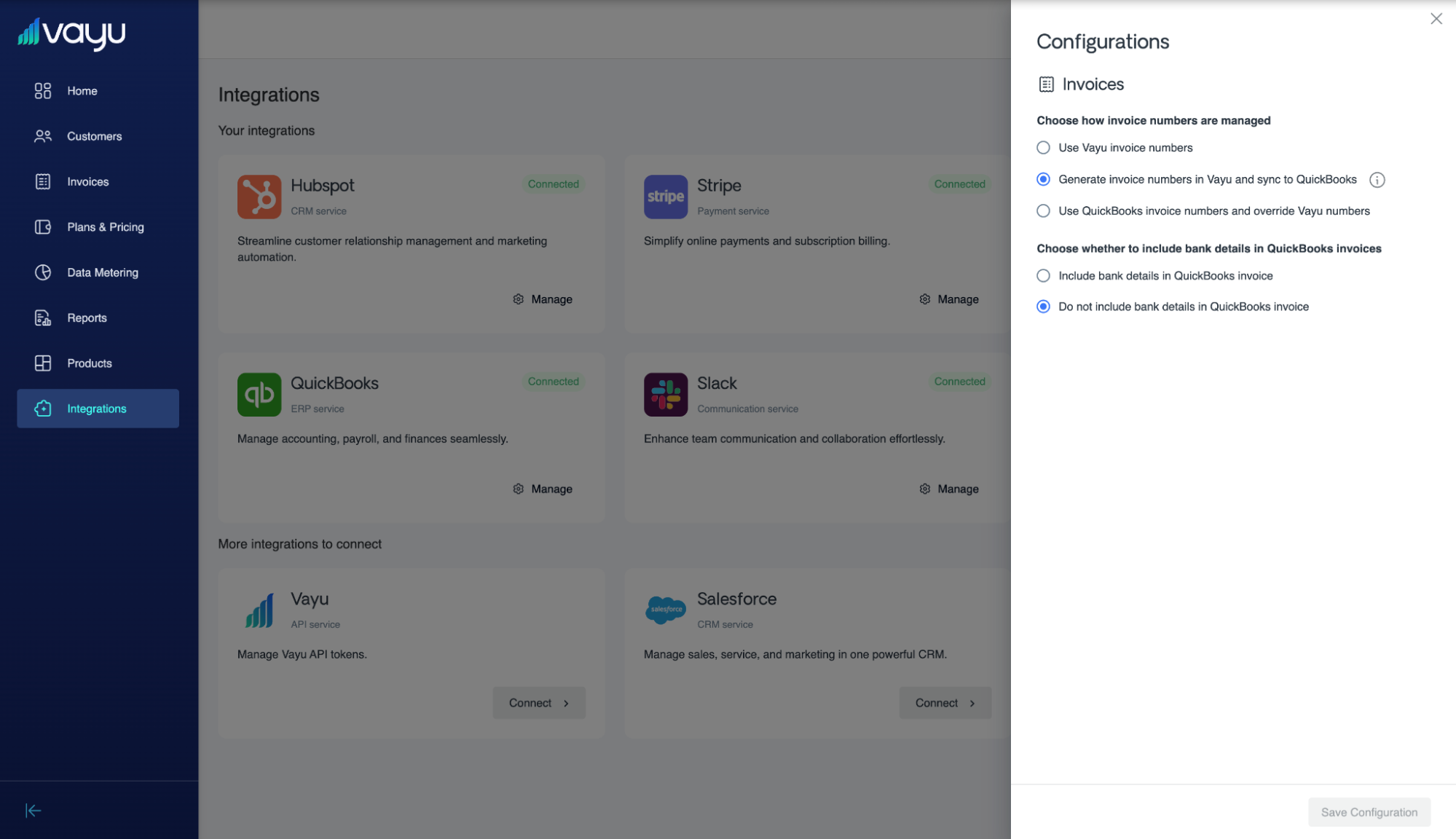
Invoices
You have two configurations to consider for invoices with QuickBooks and Vayu. First, choose which invoice number to use:- ⦾ Use Vayu invoice number
- ⦾ Generate invoice numbers in Vayu and sync to QuickBooks
- ⦾ Use QuickBooks invoice numbers and override Vayu numbers
- ⦾ Include
- ⦾ Don’t include
Capabilities
The main capabilities of the integration include:- Syncing Vayu invoices into QuickBooks
- Syncing Vayu invoices as sales orders into QuickBooks
- Syncing invoice status
- From Vayu to QuickBooks
- From QuickBooks to Vayu
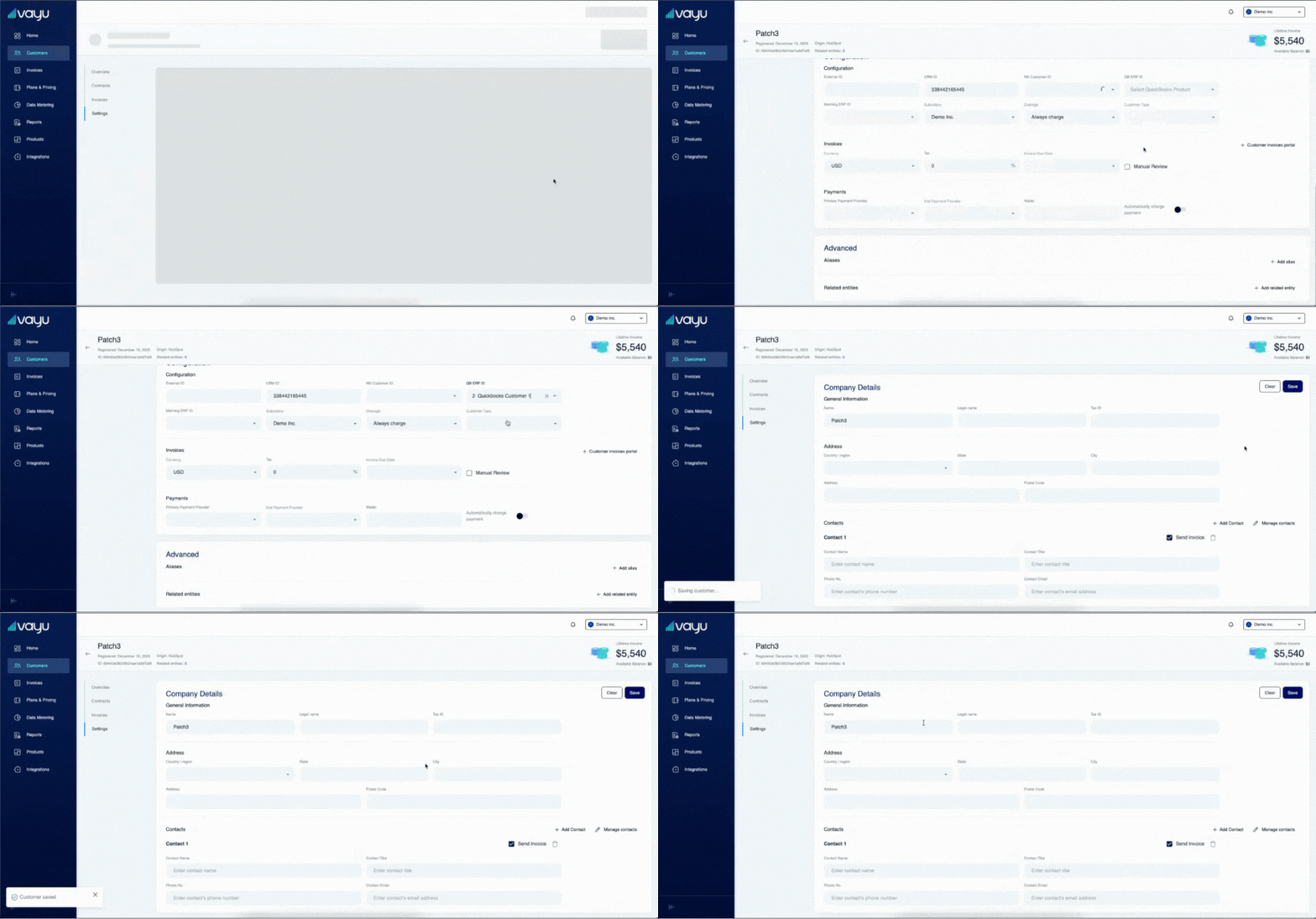
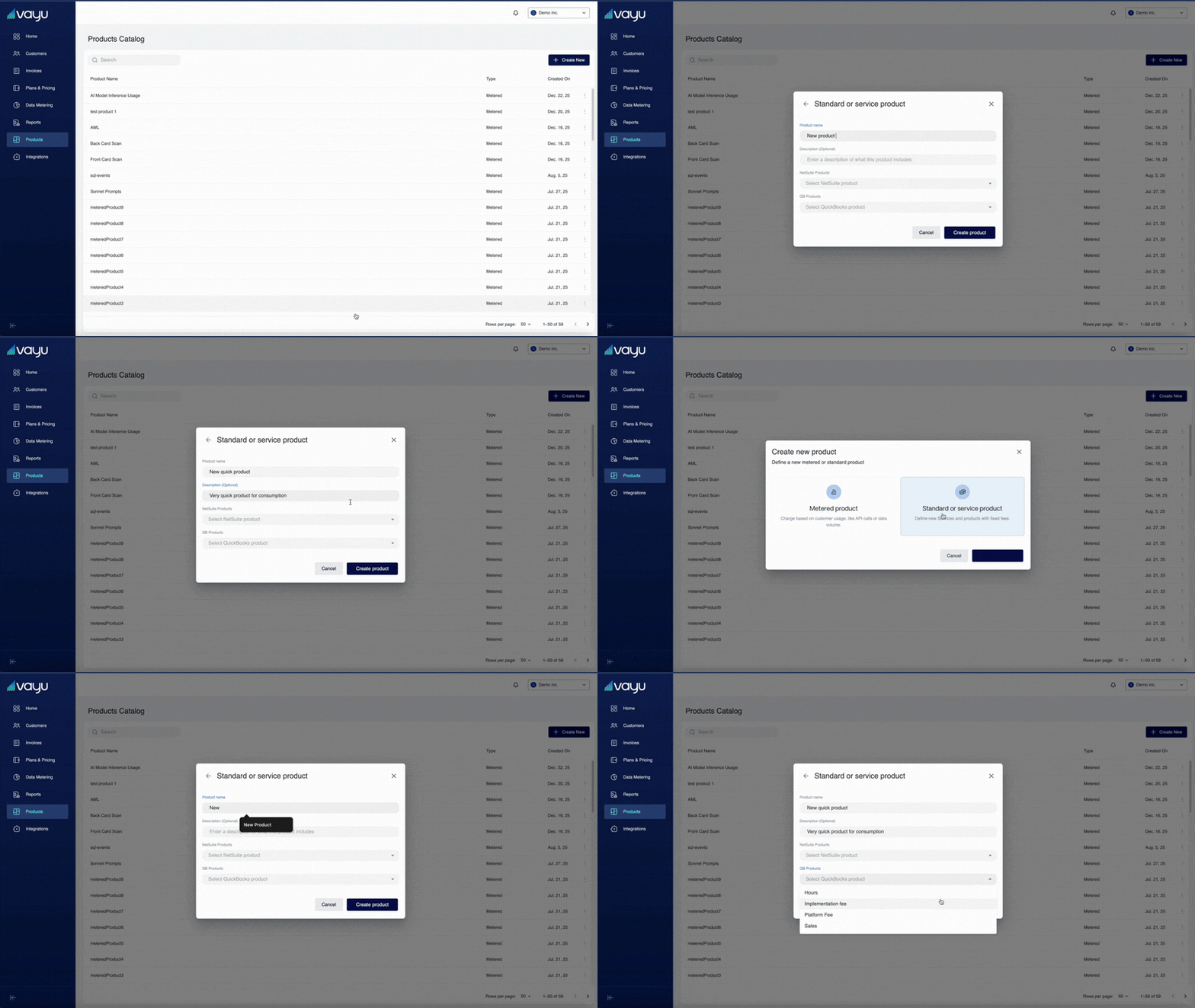
- Mapping Vayu customers to QuickBooks customers
- Mapping Vayu products to QuickBooks products
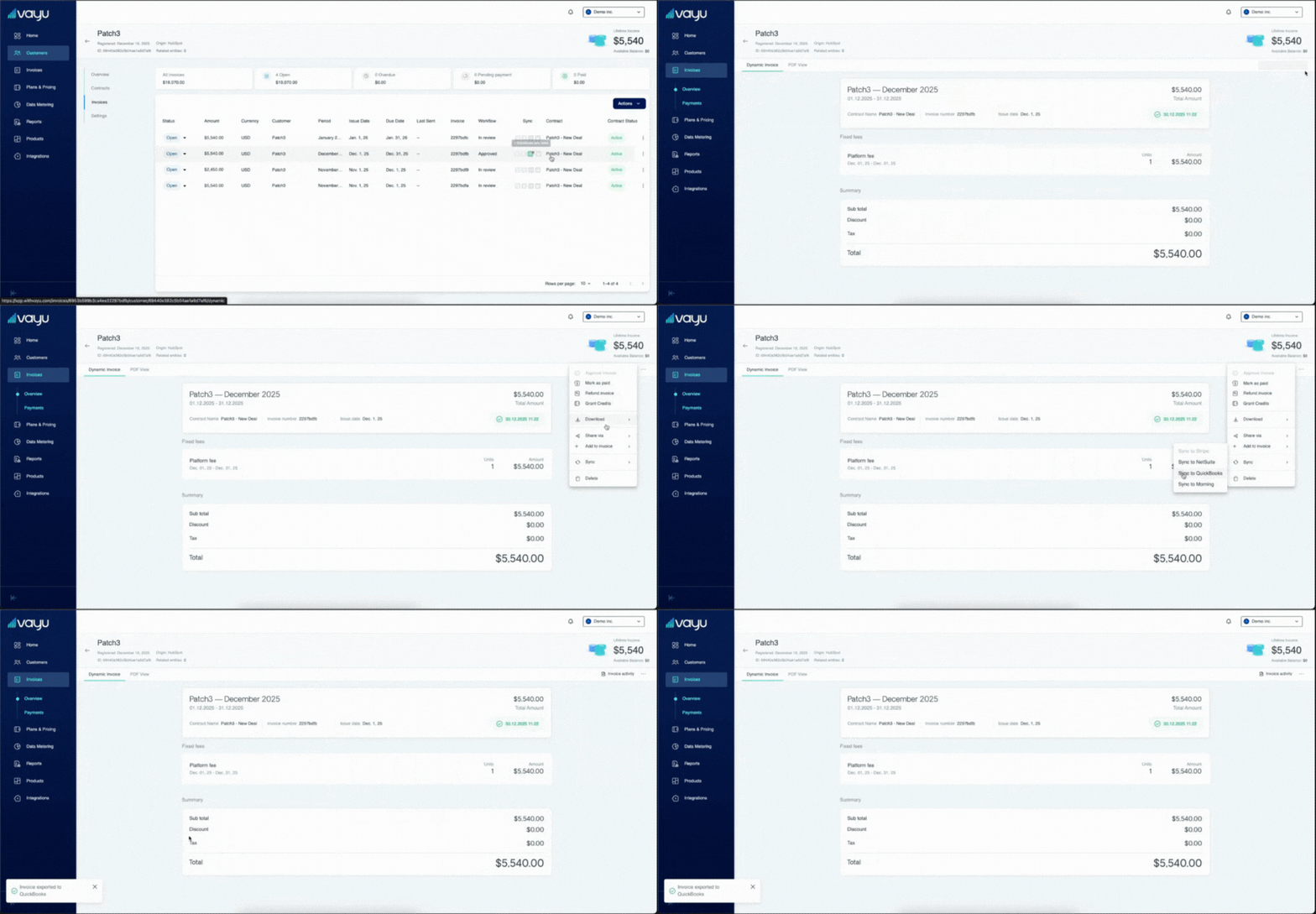
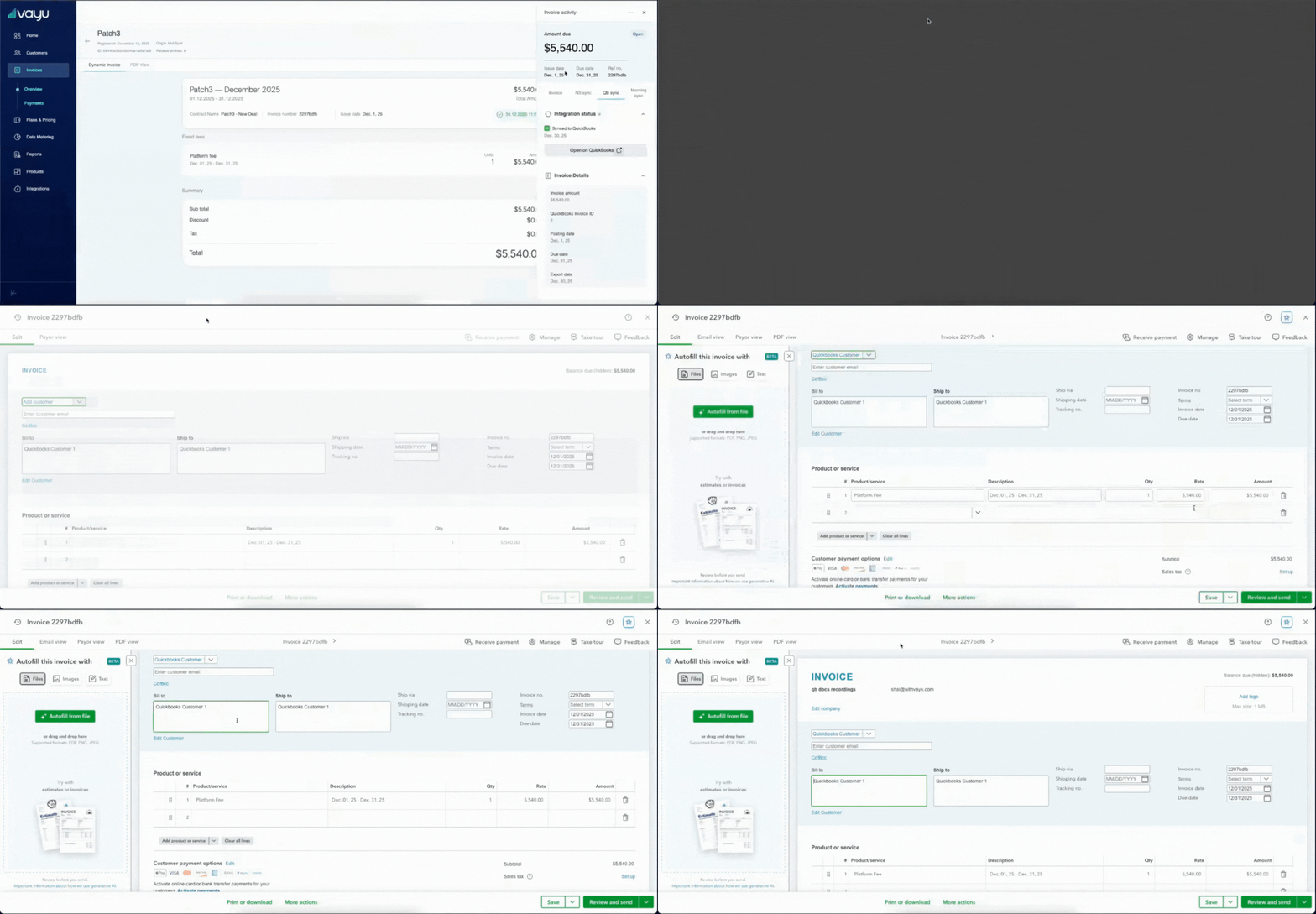
- Integration status
- When data was last synced
- the original invoice by clicking Open on QuickBooks.
Reconciliation
The Vayu-QuickBooks integration tracks failed syncs, catalogs errors, and monitors retries. On top of this, there is duplication prevention when it comes to retries, matching records by unique IDs to avoid conflicts.Field Mappings & Attribution
- ItemRef: Identifies the QuickBooks product/service
- AccountRef: Income or AR account
- ClassRef: Optional segmentation fields
- CustomerRef: Mapped QuickBooks customer
Logs and Activity Tracking
Vayu ensures proper versioning and reconciliation by logging all synced records with timestamps for audits. To do this, be sure to enable syncing on validation reports. All sync activity is tracked inside Vayu:- Success and failure logs for failed syncs
- Retry attempts
- IDs of created QuickBooks transactions
- Timestamped event history
- Error reasoning/details with user-friendly explanations
Troubleshooting
Common Issues and Fixes
| Issue | Explanation | Fix |
|---|---|---|
| Missing ItemRef | A Vayu product is not mapped to a QuickBooks Product/Service | Add mapping in Vayu → retry sync |
| Permission error | QuickBooks user lacks access to invoices or items | Reconnect using a QuickBooks admin |
| Rate limit exceeded | QuickBooks Online throttles at 500 req/min | Vayu automatically retries; try bulk sync during lower activity periods |
| Invalid GL mapping | The referenced account is inactive or restricted | Update mapping to an active income or AR account |
| Token expired | OAuth token revoked or expired | Reconnect QuickBooks in Vayu |