> ## Documentation Index
> Fetch the complete documentation index at: https://guide.withvayu.com/llms.txt
> Use this file to discover all available pages before exploring further.
# Plans & Pricing Overview
> Description of your new file.
The **Plans & Pricing** section defines how products, subscriptions, and usage are priced across your customer contracts. It provides a centralized location for configuring pricing structures that can be reused across billing workflows and integrated into customer agreements.
Pricing is managed in the Plans & Pricing section of Vayu. Whenever you create a plan, you have many options for setting payment schedules, defining contract terms, and more. In Vayu, the contract anchors the products, their price, and any modifications to each product (commitment, base price, billing interval, etc). Each contract can hold an unlimited number of Fixed Fee product(s) and/or Usage-Based products.
Pricing configuration supports a wide range of commercial models, including fixed fees, usage-based pricing, tiered pricing, minimum commitments, and contract-based billing structures. This section of Vayu is designed to help launch new pricing models, update existing commercial terms, or standardize reusable plans across customers.
At the top of the page, you’ll find an overview of available pricing components and configuration tools. Below that, plans and pricing objects are organized to support both operational billing workflows and long-term pricing management across your revenue operations process.
# How to Create a Contract
When you sign into Vayu, navigate to the lefthand-side menu. Find and select **Plans & Pricing**.
Once there, you will be able to see all the plans you’ve created so far. To create a new plan, go to the top right of the plans list and select the **+ Create** button.
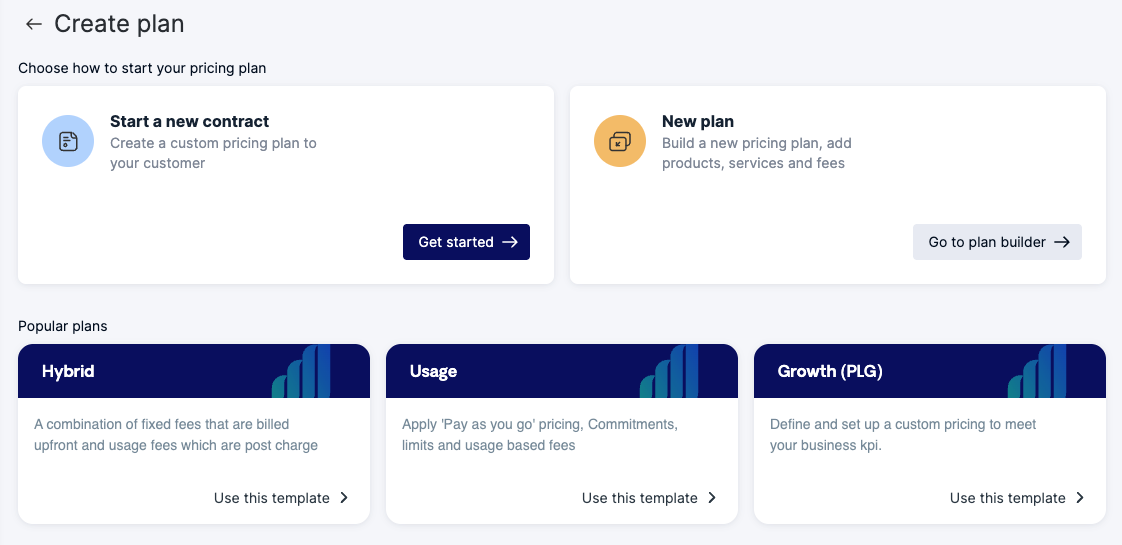 On the **Create Plan** page, you will see several options.
In the top row, you can choose to **Get started →** on a new contract or **Go to plan builder →** to create a new plan.
Alternatively, you can select from three popular templates for Hybrid plans, Usage-based plans, or Growth-based (PLG).
On the **Create Plan** page, you will see several options.
In the top row, you can choose to **Get started →** on a new contract or **Go to plan builder →** to create a new plan.
Alternatively, you can select from three popular templates for Hybrid plans, Usage-based plans, or Growth-based (PLG).
 On the **Plan Builder** (i.e. General Terms) page, you will name the plan and select its length from a dropdown list that includes the following **plan duration** options:
* Any range of months
* Evergreen
Next, select your billing method from the following three options:
* **Calendar-Aligned with Proration –** Billing aligns to calendar intervals (e.g., 1st–31st of each month). If a contract starts mid-period, a prorated invoice is issued for the partial period.\
\
***Example:*** Contract starts March 15 → Prorated invoice for Mar 15–31, then regular monthly billing from Apr 1.
* **Pro Rata –** Billing follows the contract start date (e.g. Mar 15–Apr 14, Apr 15–May 14). Changes or early termination will generate prorated charges for partial usage.\
\
***Example:*** If the contract terminates June 10, then the final invoice is prorated for May 15–June 10.
* **No Proration** – Invoices will not be adjusted for partial periods. Customers are charged the full amount for the billing interval, regardless of when the contract starts, changes, or ends.\
\
***Example:*** If the contract starts March 20, then the first invoice will still be for the *full* month of March.
Finally, toggle whether or not you want auto-renewal to be automatic.
To continue, select the dark blue **Continue** button to the bottom right.
## **Pricing & Products Page**
On the **Pricing & Products** page, you will have the opportunity to add the following:
* Service fees
* Usage-based fees
* Credits & discounts
### **Service Fees**
On the **Plan Builder** (i.e. General Terms) page, you will name the plan and select its length from a dropdown list that includes the following **plan duration** options:
* Any range of months
* Evergreen
Next, select your billing method from the following three options:
* **Calendar-Aligned with Proration –** Billing aligns to calendar intervals (e.g., 1st–31st of each month). If a contract starts mid-period, a prorated invoice is issued for the partial period.\
\
***Example:*** Contract starts March 15 → Prorated invoice for Mar 15–31, then regular monthly billing from Apr 1.
* **Pro Rata –** Billing follows the contract start date (e.g. Mar 15–Apr 14, Apr 15–May 14). Changes or early termination will generate prorated charges for partial usage.\
\
***Example:*** If the contract terminates June 10, then the final invoice is prorated for May 15–June 10.
* **No Proration** – Invoices will not be adjusted for partial periods. Customers are charged the full amount for the billing interval, regardless of when the contract starts, changes, or ends.\
\
***Example:*** If the contract starts March 20, then the first invoice will still be for the *full* month of March.
Finally, toggle whether or not you want auto-renewal to be automatic.
To continue, select the dark blue **Continue** button to the bottom right.
## **Pricing & Products Page**
On the **Pricing & Products** page, you will have the opportunity to add the following:
* Service fees
* Usage-based fees
* Credits & discounts
### **Service Fees**
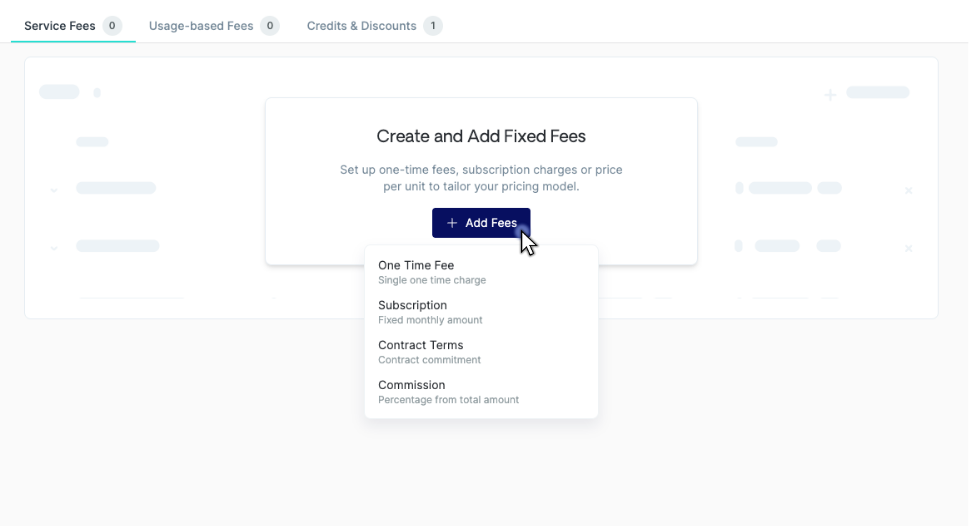 When you enter the Service Fees page, you'll be met with a white box titled **Create & Add Fixed Fees**, select the blue button **+ Add Fees**.
You can select from the dropdown one of four options:
* One Time Fee
* Subscription
* Contract Terms
* Commission
### **Usage-Based Fees**
When you enter the Service Fees page, you'll be met with a white box titled **Create & Add Fixed Fees**, select the blue button **+ Add Fees**.
You can select from the dropdown one of four options:
* One Time Fee
* Subscription
* Contract Terms
* Commission
### **Usage-Based Fees**
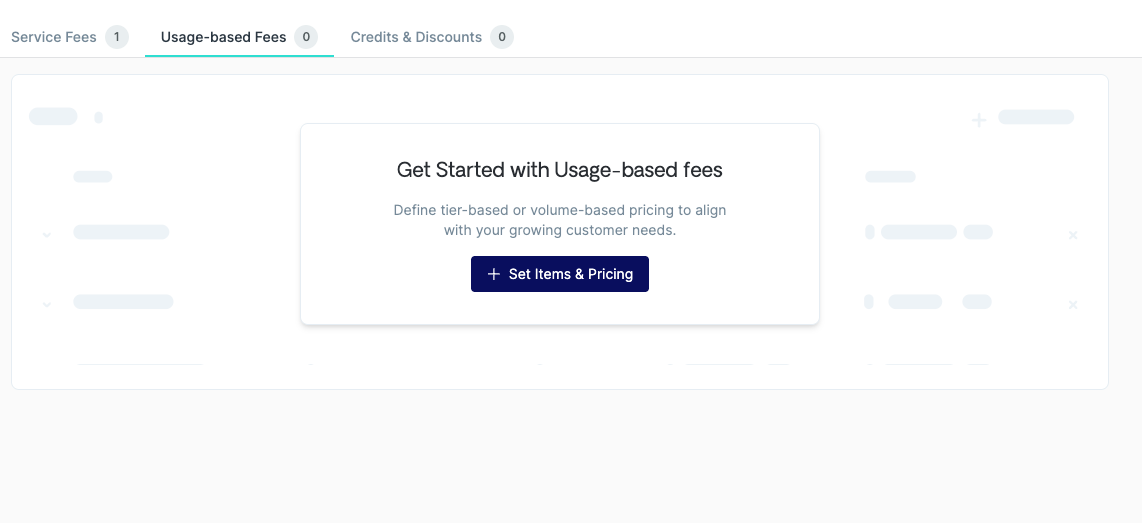 On the Usage-Based Fees page, select the blue **+ Set terms & Pricing** button, then select the option you want from the dropdown menu.
For each item, you will have three fields: **Select pricing**, **Select product source**, and **Product name**.
Under **Select pricing**, you will have five options:
* Tiered
* Volume
* Per Unit
* Revenue Share
* Tiered Subscription
For usage-based fees, you can modify Item Settings (NS Product ID and/or Product Description), Schedule, and finally Data Metering & Pricing.
### **Credits & Discounts**
On the Credits & Discounts page, you may add discounts and credits at the contract level (discounts & credits can be applied at the product level as well).\
Go to the white box titled **Credits & Discounts**, then select the dark blue **+ Add Promotions** button:
You will have three initial options to configure:
* Credits - Usage fees
* Percentage Discount
* Metered Credit
If you forget to fill these in when applying a credit or discount, you will be prompted to go back.
Next, click the gray **Modify** button.
For credits and discount percentages, you can toggle the product description or if this will be a recurring discount.
When creating a new plan, you must have at least one product added prior to saving.
**Product Modifications**
Each product type has its own unique modification options, tailored to its unique logic. Some modifications are consistent throughout all product types:
* **Issue as a Separate Invoice** – Generate a dedicated invoice for this product, separate from other charges
* **Add Product Description** – Include a custom line-item description on the invoice
* **Custom Start Date** – Override the contract start date for this specific product and start billing it on a different date.\
\
*Example*: The contract starts Mar 1, but the product begins Apr 1 → Invoicing for this product will start on Apr 1.
* **Add Discount –** Apply a fixed amount or percentage discount to the product\
*Note: Discount options vary by product type. For example, recurring discounts are available for subscription products.*
| **Note: Invoices** You have the option to generate an independent, separate invoice on any product. When you do this, it ensures that that specific product will be billed/invoiced separately from the rest of the products in that contract. |
| :---------------------------------------------------------------------------------------------------------------------------------------------------------------------------------------------------------------------------------------------------- |
## **Sample Demo**
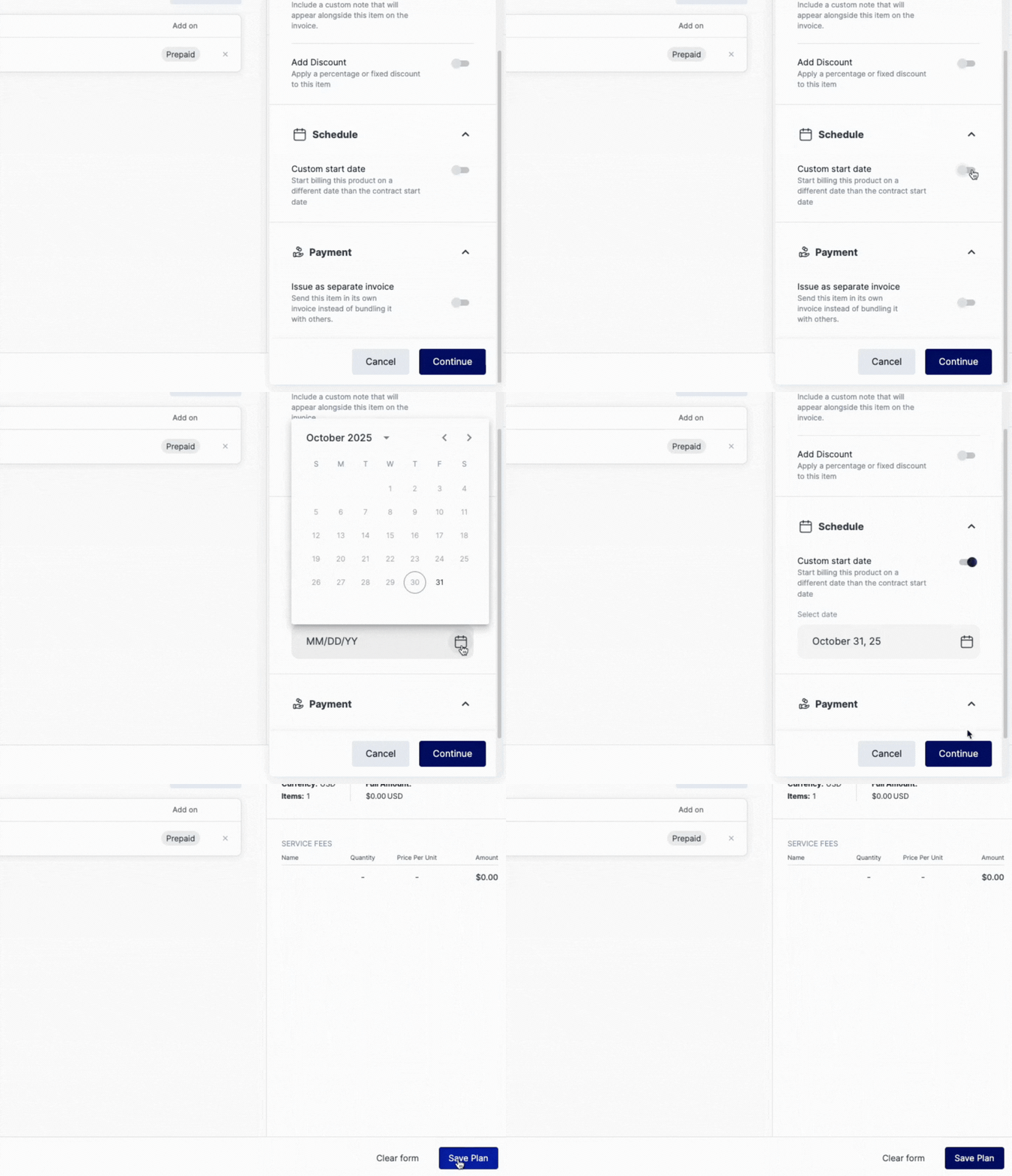
In this quick demo, you can see how to add a service fee to your plan.
From the white box titled **Create & Add Fixed Fees**, select the blue button **+ Add Fees**.
Select from the dropdown one of four fee types: one time fee, subscription, contract terms, or a commission.
Next, click the gray **Modify** button. Here, you can modify terms for **Pricing Settings**, **Schedule**, and **Payment**.
Under **Schedule**, you can set the date for the plan to begin:
On the Usage-Based Fees page, select the blue **+ Set terms & Pricing** button, then select the option you want from the dropdown menu.
For each item, you will have three fields: **Select pricing**, **Select product source**, and **Product name**.
Under **Select pricing**, you will have five options:
* Tiered
* Volume
* Per Unit
* Revenue Share
* Tiered Subscription
For usage-based fees, you can modify Item Settings (NS Product ID and/or Product Description), Schedule, and finally Data Metering & Pricing.
### **Credits & Discounts**
On the Credits & Discounts page, you may add discounts and credits at the contract level (discounts & credits can be applied at the product level as well).\
Go to the white box titled **Credits & Discounts**, then select the dark blue **+ Add Promotions** button:
You will have three initial options to configure:
* Credits - Usage fees
* Percentage Discount
* Metered Credit
If you forget to fill these in when applying a credit or discount, you will be prompted to go back.
Next, click the gray **Modify** button.
For credits and discount percentages, you can toggle the product description or if this will be a recurring discount.
When creating a new plan, you must have at least one product added prior to saving.
**Product Modifications**
Each product type has its own unique modification options, tailored to its unique logic. Some modifications are consistent throughout all product types:
* **Issue as a Separate Invoice** – Generate a dedicated invoice for this product, separate from other charges
* **Add Product Description** – Include a custom line-item description on the invoice
* **Custom Start Date** – Override the contract start date for this specific product and start billing it on a different date.\
\
*Example*: The contract starts Mar 1, but the product begins Apr 1 → Invoicing for this product will start on Apr 1.
* **Add Discount –** Apply a fixed amount or percentage discount to the product\
*Note: Discount options vary by product type. For example, recurring discounts are available for subscription products.*
| **Note: Invoices** You have the option to generate an independent, separate invoice on any product. When you do this, it ensures that that specific product will be billed/invoiced separately from the rest of the products in that contract. |
| :---------------------------------------------------------------------------------------------------------------------------------------------------------------------------------------------------------------------------------------------------- |
## **Sample Demo**
In this quick demo, you can see how to add a service fee to your plan.
From the white box titled **Create & Add Fixed Fees**, select the blue button **+ Add Fees**.
Select from the dropdown one of four fee types: one time fee, subscription, contract terms, or a commission.
Next, click the gray **Modify** button. Here, you can modify terms for **Pricing Settings**, **Schedule**, and **Payment**.
Under **Schedule**, you can set the date for the plan to begin:
 ***
***
***
***