> ## Documentation Index
> Fetch the complete documentation index at: https://guide.withvayu.com/llms.txt
> Use this file to discover all available pages before exploring further.
# Stripe
> Vayu–Stripe Integration
 Vayu integrates with **Stripe** to handle invoice payments, payment status updates, and customer billing workflows. Stripe can function as a customer’s **primary payment provider**, enabling automatic invoice synchronization and real-time payment status updates from strip to Vayu.
The integration supports customers who are **already using Stripe** as well as customers who are **new to Stripe**, with onboarding handled either directly in Stripe or, in future iterations, via Vayu-assisted flows. It includes a payment link in the invoice itself, as well as an auto-collect feature you can toggle.
## How the Stripe Integration Works
Once Stripe is connected for a customer, Vayu remains the source of truth for **customer**, **contract management,** and **invoicing**. Stripe will be used solely for **payments**.
After a contract is active, invoices are generated in Vayu. Upon approval, invoices can be synced to Stripe automatically or manually, depending on configuration. Invoices can also be auto-collected.
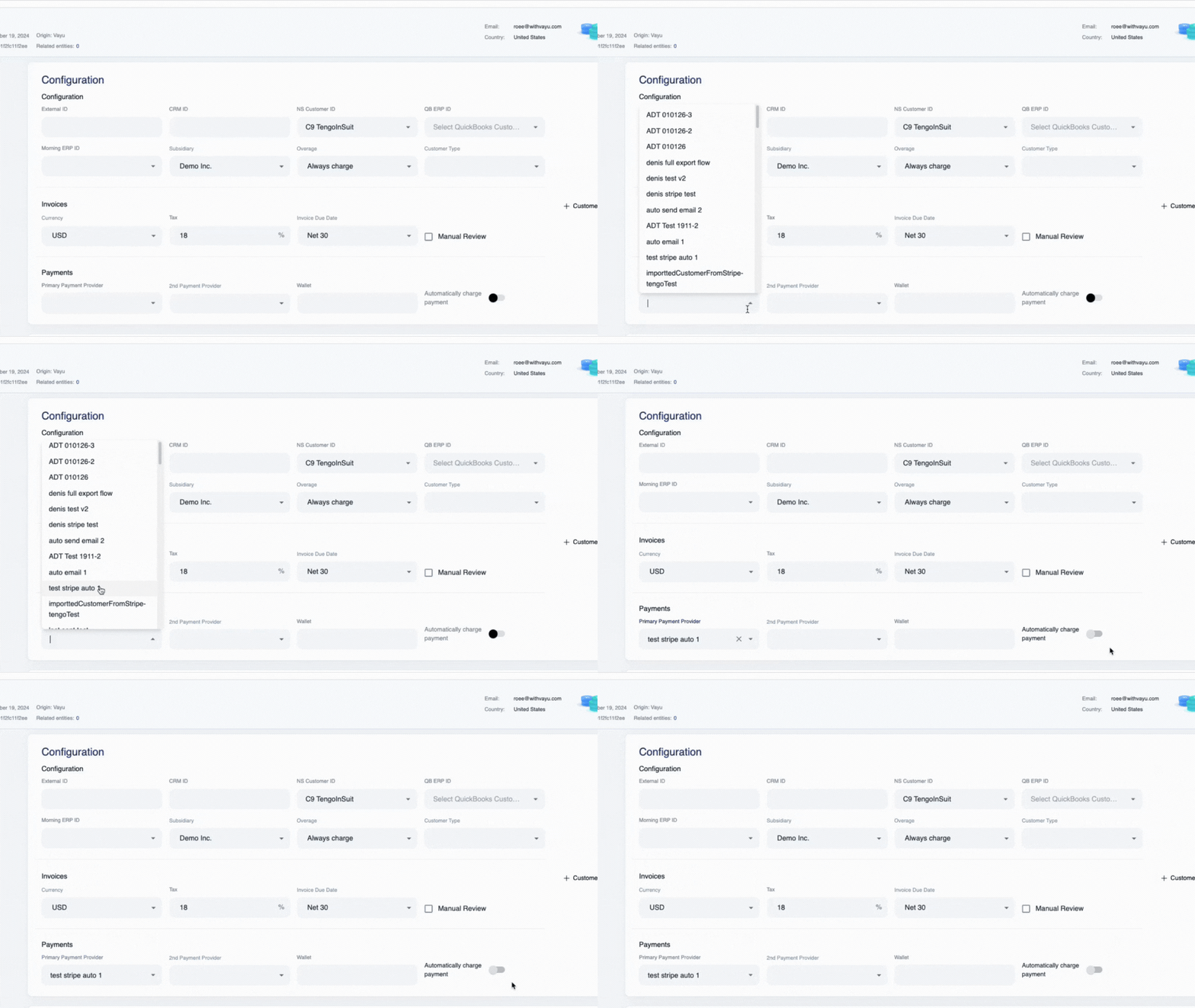
Set Stripe as the payment provider by going to a **Customer** profile, then selecting **Settings**. Scroll to **Configurations** and choose Stripe as your **Primary** **Payment Provider**.
Vayu integrates with **Stripe** to handle invoice payments, payment status updates, and customer billing workflows. Stripe can function as a customer’s **primary payment provider**, enabling automatic invoice synchronization and real-time payment status updates from strip to Vayu.
The integration supports customers who are **already using Stripe** as well as customers who are **new to Stripe**, with onboarding handled either directly in Stripe or, in future iterations, via Vayu-assisted flows. It includes a payment link in the invoice itself, as well as an auto-collect feature you can toggle.
## How the Stripe Integration Works
Once Stripe is connected for a customer, Vayu remains the source of truth for **customer**, **contract management,** and **invoicing**. Stripe will be used solely for **payments**.
After a contract is active, invoices are generated in Vayu. Upon approval, invoices can be synced to Stripe automatically or manually, depending on configuration. Invoices can also be auto-collected.
Set Stripe as the payment provider by going to a **Customer** profile, then selecting **Settings**. Scroll to **Configurations** and choose Stripe as your **Primary** **Payment Provider**.
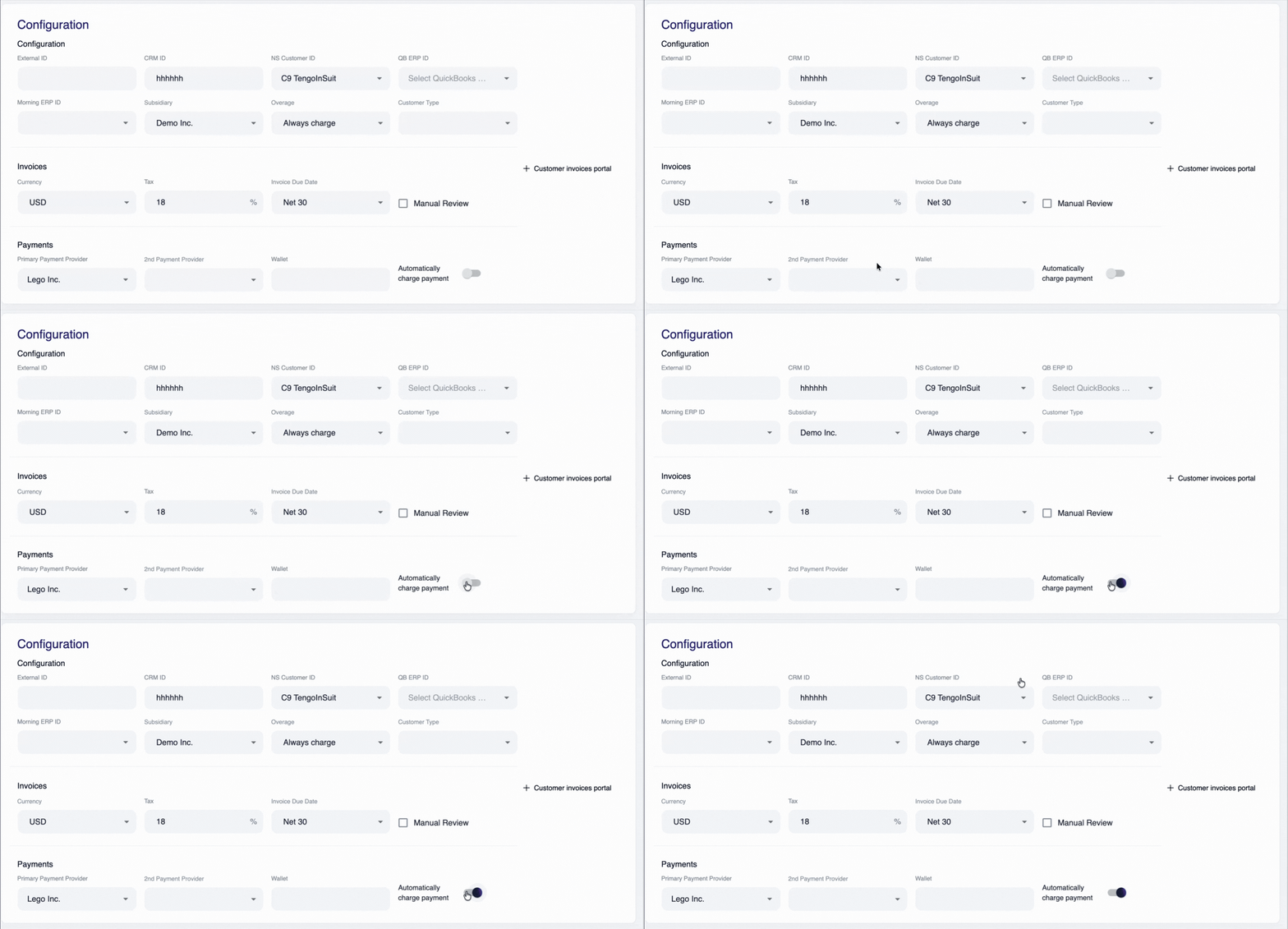
 You can also elect to add auto-collect by toggling “Automatically charge payment”:
 ### **Invoice Synchronization Flow**
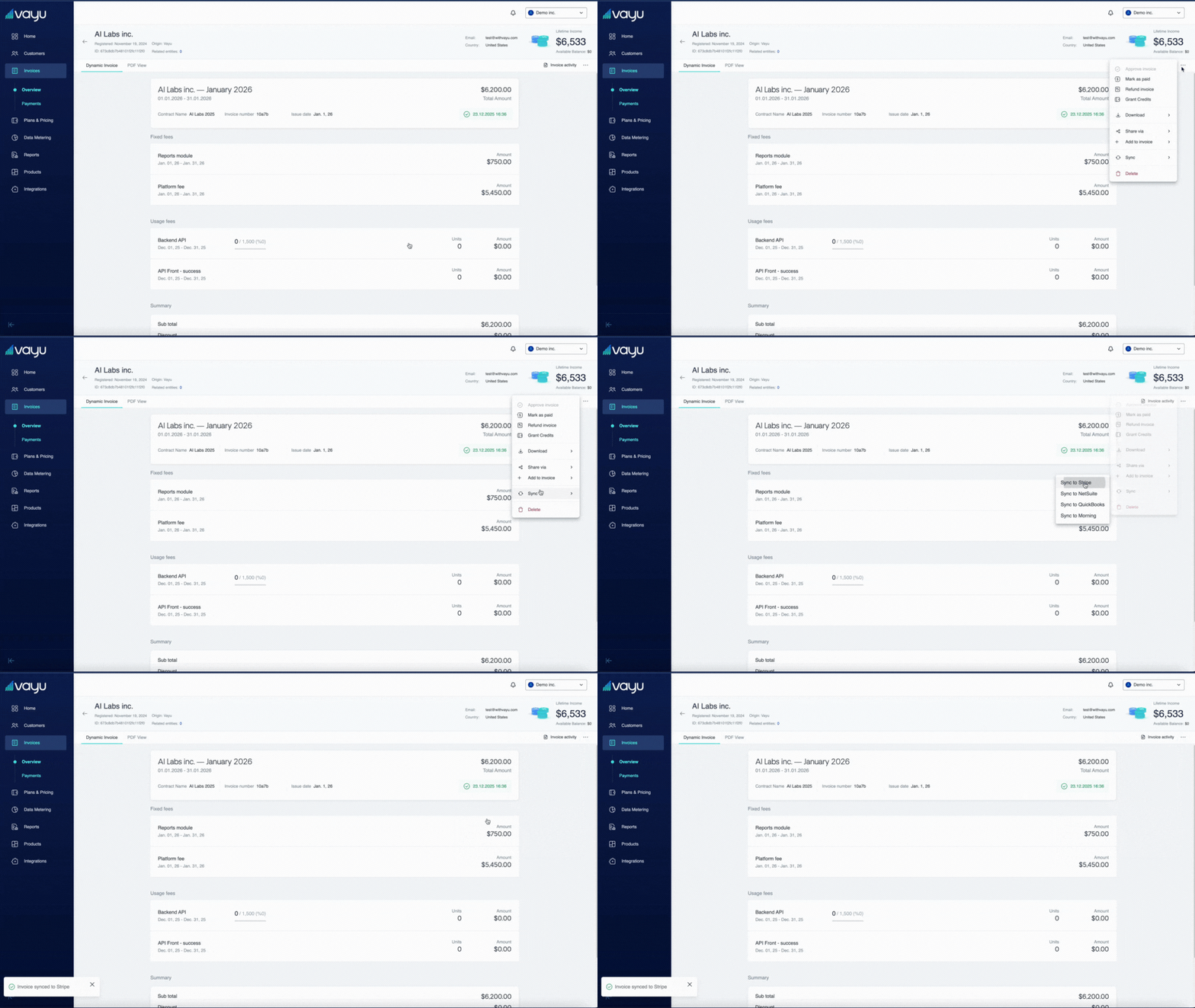
When an invoice is approved in Vayu, one of two sync paths applies:
* **Automatic sync (default):**\
Approved invoices are immediately pushed from Vayu to Stripe without manual action.
* **Manual sync (optional):**\
Users can manually trigger invoice sync if auto-sync is disabled.
This sync ensures that the Stripe invoice reflects the exact totals, line items, and billing details generated in Vayu.
### **Invoice Synchronization Flow**
When an invoice is approved in Vayu, one of two sync paths applies:
* **Automatic sync (default):**\
Approved invoices are immediately pushed from Vayu to Stripe without manual action.
* **Manual sync (optional):**\
Users can manually trigger invoice sync if auto-sync is disabled.
This sync ensures that the Stripe invoice reflects the exact totals, line items, and billing details generated in Vayu.
 ### **From Vayu invoice to Stripe invoice**
Once synced, each invoice in Vayu includes a **clickable reference** that opens the corresponding Stripe invoice. This allows finance teams to move seamlessly from operational billing (Vayu) to payment execution (Stripe).
### **Payment methods and customer experience**
Stripe supports multiple payment methods, including:
* Credit cards
* ACH / wire transfers
* Direct online payment links
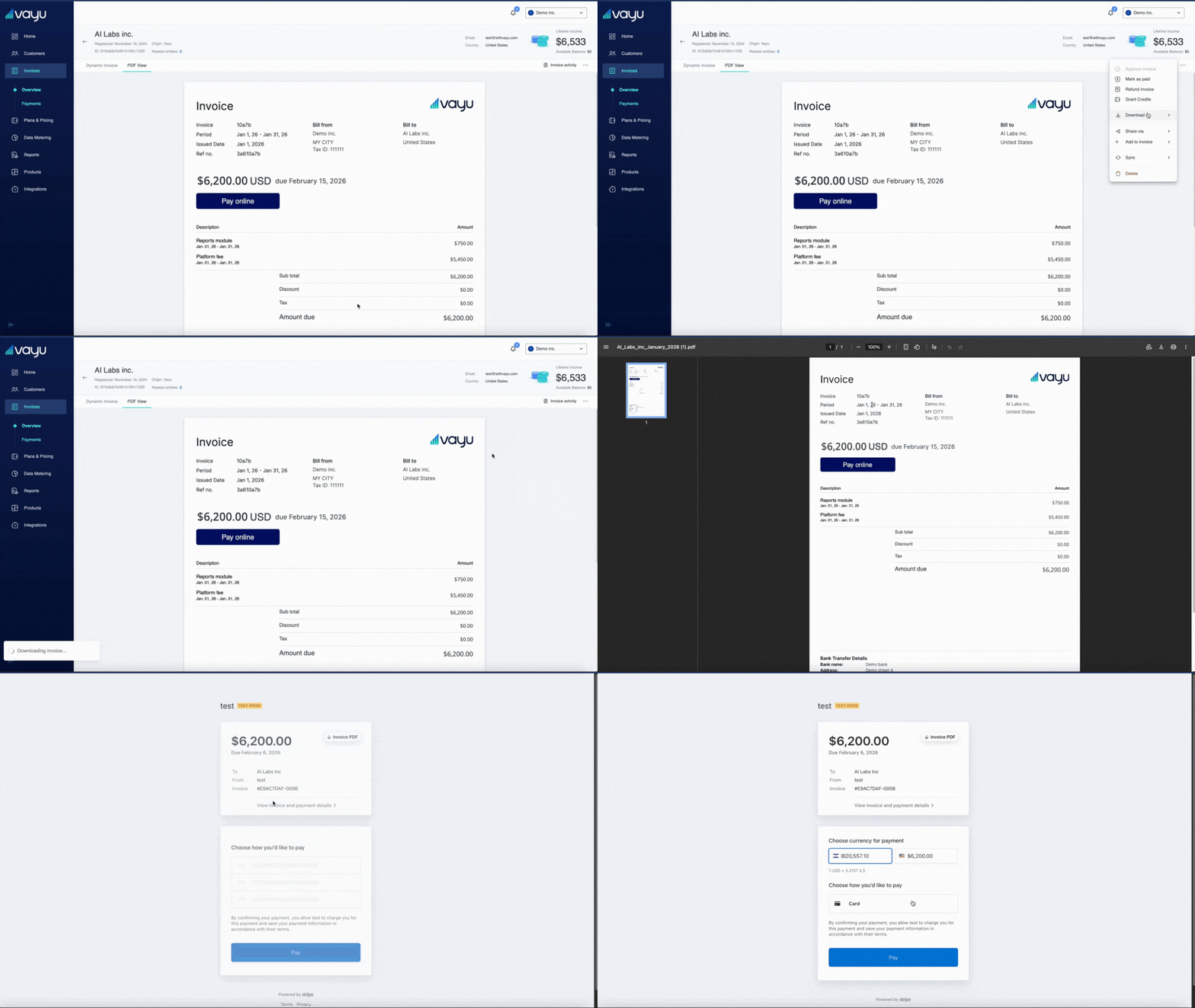
From the customer’s perspective, invoices received via Stripe include a **Pay Online** option. This link is embedded directly in the invoice PDF and routes the customer to Stripe’s hosted checkout.
You can also elect to add auto-collect by toggling “Automatically charge payment”:
### **Invoice Synchronization Flow**
When an invoice is approved in Vayu, one of two sync paths applies:
* **Automatic sync (default):**\
Approved invoices are immediately pushed from Vayu to Stripe without manual action.
* **Manual sync (optional):**\
Users can manually trigger invoice sync if auto-sync is disabled.
This sync ensures that the Stripe invoice reflects the exact totals, line items, and billing details generated in Vayu.
### **From Vayu invoice to Stripe invoice**
Once synced, each invoice in Vayu includes a **clickable reference** that opens the corresponding Stripe invoice. This allows finance teams to move seamlessly from operational billing (Vayu) to payment execution (Stripe).
### **Payment methods and customer experience**
Stripe supports multiple payment methods, including:
* Credit cards
* ACH / wire transfers
* Direct online payment links
From the customer’s perspective, invoices received via Stripe include a **Pay Online** option. This link is embedded directly in the invoice PDF and routes the customer to Stripe’s hosted checkout.
### **From Vayu invoice to Stripe invoice**
Once synced, each invoice in Vayu includes a **clickable reference** that opens the corresponding Stripe invoice. This allows finance teams to move seamlessly from operational billing (Vayu) to payment execution (Stripe).
### **Payment methods and customer experience**
Stripe supports multiple payment methods, including:
* Credit cards
* ACH / wire transfers
* Direct online payment links
From the customer’s perspective, invoices received via Stripe include a **Pay Online** option. This link is embedded directly in the invoice PDF and routes the customer to Stripe’s hosted checkout.
You can also elect to add auto-collect by toggling “Automatically charge payment”:
### **Invoice Synchronization Flow**
When an invoice is approved in Vayu, one of two sync paths applies:
* **Automatic sync (default):**\
Approved invoices are immediately pushed from Vayu to Stripe without manual action.
* **Manual sync (optional):**\
Users can manually trigger invoice sync if auto-sync is disabled.
This sync ensures that the Stripe invoice reflects the exact totals, line items, and billing details generated in Vayu.
### **From Vayu invoice to Stripe invoice**
Once synced, each invoice in Vayu includes a **clickable reference** that opens the corresponding Stripe invoice. This allows finance teams to move seamlessly from operational billing (Vayu) to payment execution (Stripe).
### **Payment methods and customer experience**
Stripe supports multiple payment methods, including:
* Credit cards
* ACH / wire transfers
* Direct online payment links
From the customer’s perspective, invoices received via Stripe include a **Pay Online** option. This link is embedded directly in the invoice PDF and routes the customer to Stripe’s hosted checkout.
 ### **Payment status updates back to Vayu**
After a payment attempt:
* Stripe updates the **payment intent status** (success or failure).
* Vayu retrieves this status and updates the invoice accordingly.
* Successful payments automatically update the invoice status to **Paid** in Vayu.
* Failed payments surface as part of Vayu’s **outstanding balances (OOS)** and AR workflows.
This ensures billing, finance, and operations teams always see the **current payment state** without switching systems.
Future iterations may allow parts of this onboarding to be initiated or guided directly from Vayu.
## Configuring the Stripe Integration
Go to your Stripe and get an API key for your Stripe account.
Back in Vayu, go to **Integrations** and go to the **Stripe** panel. Click on **Manage**.
Once there, you will have three things to configure.
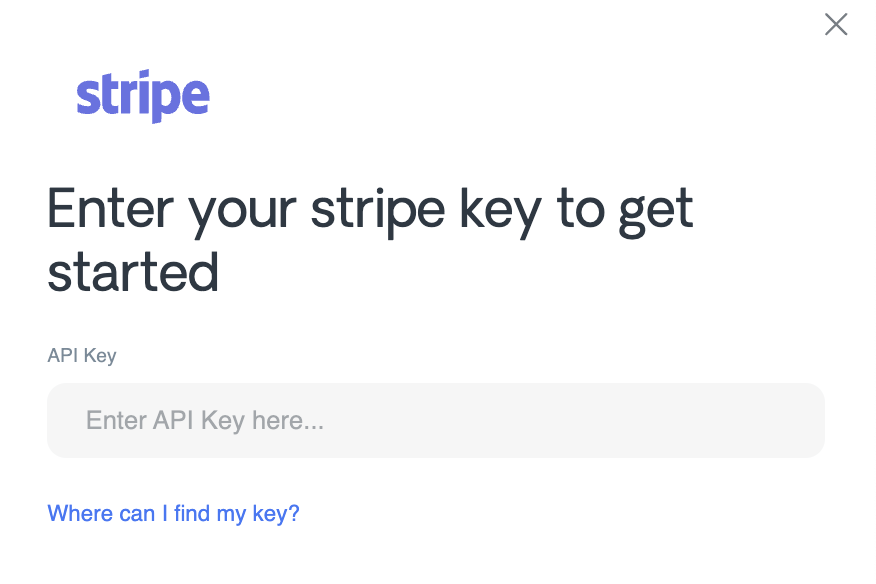
First, paste your API key in the text bar (which you can modify later).
### **Payment status updates back to Vayu**
After a payment attempt:
* Stripe updates the **payment intent status** (success or failure).
* Vayu retrieves this status and updates the invoice accordingly.
* Successful payments automatically update the invoice status to **Paid** in Vayu.
* Failed payments surface as part of Vayu’s **outstanding balances (OOS)** and AR workflows.
This ensures billing, finance, and operations teams always see the **current payment state** without switching systems.
Future iterations may allow parts of this onboarding to be initiated or guided directly from Vayu.
## Configuring the Stripe Integration
Go to your Stripe and get an API key for your Stripe account.
Back in Vayu, go to **Integrations** and go to the **Stripe** panel. Click on **Manage**.
Once there, you will have three things to configure.
First, paste your API key in the text bar (which you can modify later).
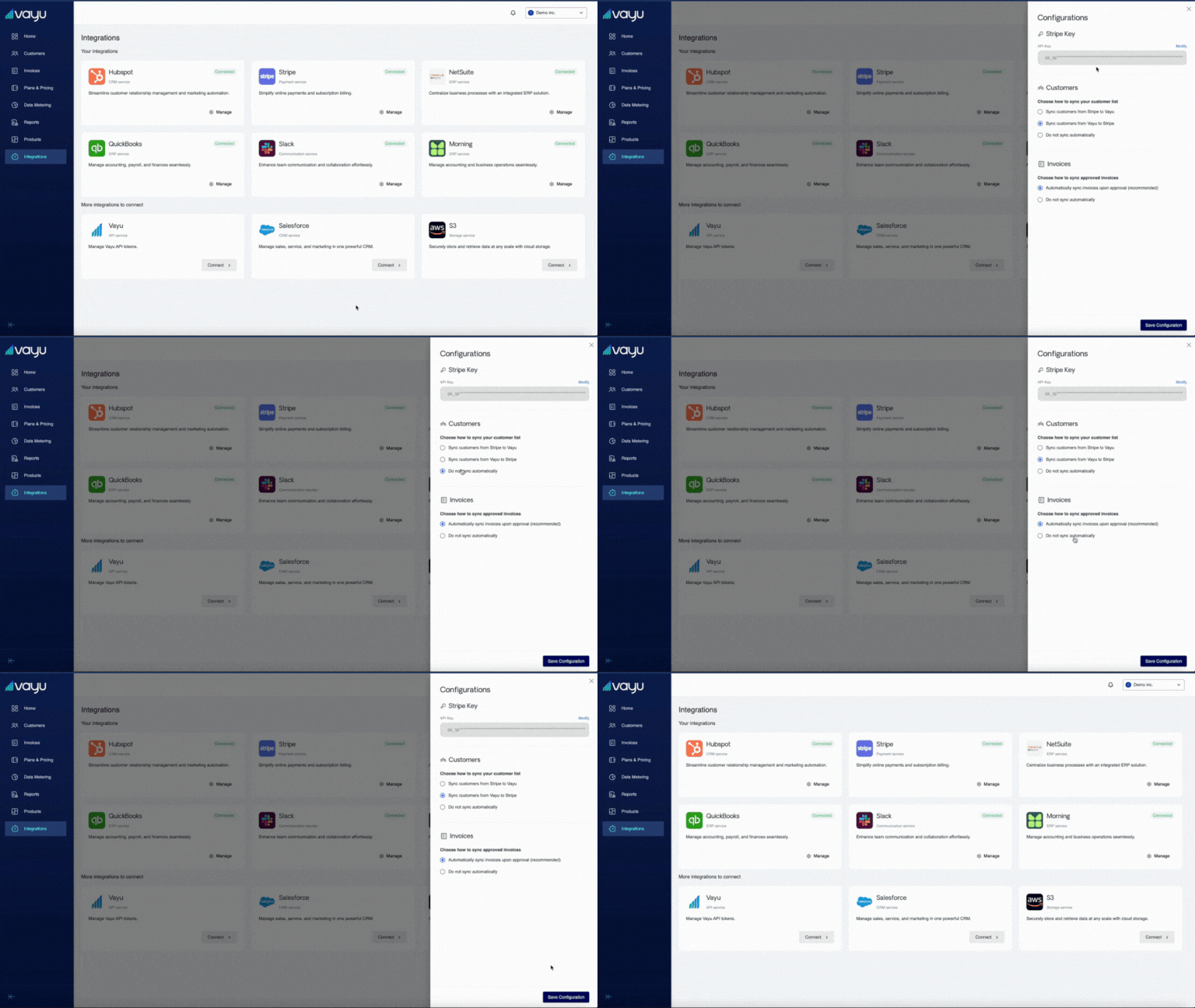 Next, choose how you would like to sync your customer list from these three options:
* Sync customers from Stripe to Vayu
* Sync customers from Vayu to Stripe
* Do not sync automatically
Finally, choose how to sync approved invoices:
* Automatically sync invoices upon approval (recommended)
* Do not sync automatically
### **Payment status updates back to Vayu**
After a payment attempt:
* Stripe updates the **payment intent status** (success or failure).
* Vayu retrieves this status and updates the invoice accordingly.
* Successful payments automatically update the invoice status to **Paid** in Vayu.
* Failed payments surface as part of Vayu’s **outstanding balances (OOS)** and AR workflows.
This ensures billing, finance, and operations teams always see the **current payment state** without switching systems.
Future iterations may allow parts of this onboarding to be initiated or guided directly from Vayu.
## Configuring the Stripe Integration
Go to your Stripe and get an API key for your Stripe account.
Back in Vayu, go to **Integrations** and go to the **Stripe** panel. Click on **Manage**.
Once there, you will have three things to configure.
First, paste your API key in the text bar (which you can modify later).
Next, choose how you would like to sync your customer list from these three options:
* Sync customers from Stripe to Vayu
* Sync customers from Vayu to Stripe
* Do not sync automatically
Finally, choose how to sync approved invoices:
* Automatically sync invoices upon approval (recommended)
* Do not sync automatically
Next, choose how you would like to sync your customer list from these three options:
* Sync customers from Stripe to Vayu
* Sync customers from Vayu to Stripe
* Do not sync automatically
Finally, choose how to sync approved invoices:
* Automatically sync invoices upon approval (recommended)
* Do not sync automatically
### **Payment status updates back to Vayu**
After a payment attempt:
* Stripe updates the **payment intent status** (success or failure).
* Vayu retrieves this status and updates the invoice accordingly.
* Successful payments automatically update the invoice status to **Paid** in Vayu.
* Failed payments surface as part of Vayu’s **outstanding balances (OOS)** and AR workflows.
This ensures billing, finance, and operations teams always see the **current payment state** without switching systems.
Future iterations may allow parts of this onboarding to be initiated or guided directly from Vayu.
## Configuring the Stripe Integration
Go to your Stripe and get an API key for your Stripe account.
Back in Vayu, go to **Integrations** and go to the **Stripe** panel. Click on **Manage**.
Once there, you will have three things to configure.
First, paste your API key in the text bar (which you can modify later).
Next, choose how you would like to sync your customer list from these three options:
* Sync customers from Stripe to Vayu
* Sync customers from Vayu to Stripe
* Do not sync automatically
Finally, choose how to sync approved invoices:
* Automatically sync invoices upon approval (recommended)
* Do not sync automatically