> ## Documentation Index
> Fetch the complete documentation index at: https://guide.withvayu.com/llms.txt
> Use this file to discover all available pages before exploring further.
# HubSpot
> Vayu–HubSpot Integration
 Vayu pulls closed HubSpot customers & deals (including line items, amounts, and selected custom fields), associates them with the HubSpot company and contacts, and recreates them in Vayu as contracts that can be reviewed, activated, and invoiced.
## **Connection and Setup**
Connecting your HubSpot account to Vayu is extremely easy. Go to the Integrations tab and select the HubSpot panel.
Click the blue Connect button.
Vayu pulls closed HubSpot customers & deals (including line items, amounts, and selected custom fields), associates them with the HubSpot company and contacts, and recreates them in Vayu as contracts that can be reviewed, activated, and invoiced.
## **Connection and Setup**
Connecting your HubSpot account to Vayu is extremely easy. Go to the Integrations tab and select the HubSpot panel.
Click the blue Connect button.
 In the connection window, choose the HubSpot account that you want and Authorize the connection.
## **Configuration**
In the connection window, choose the HubSpot account that you want and Authorize the connection.
## **Configuration**
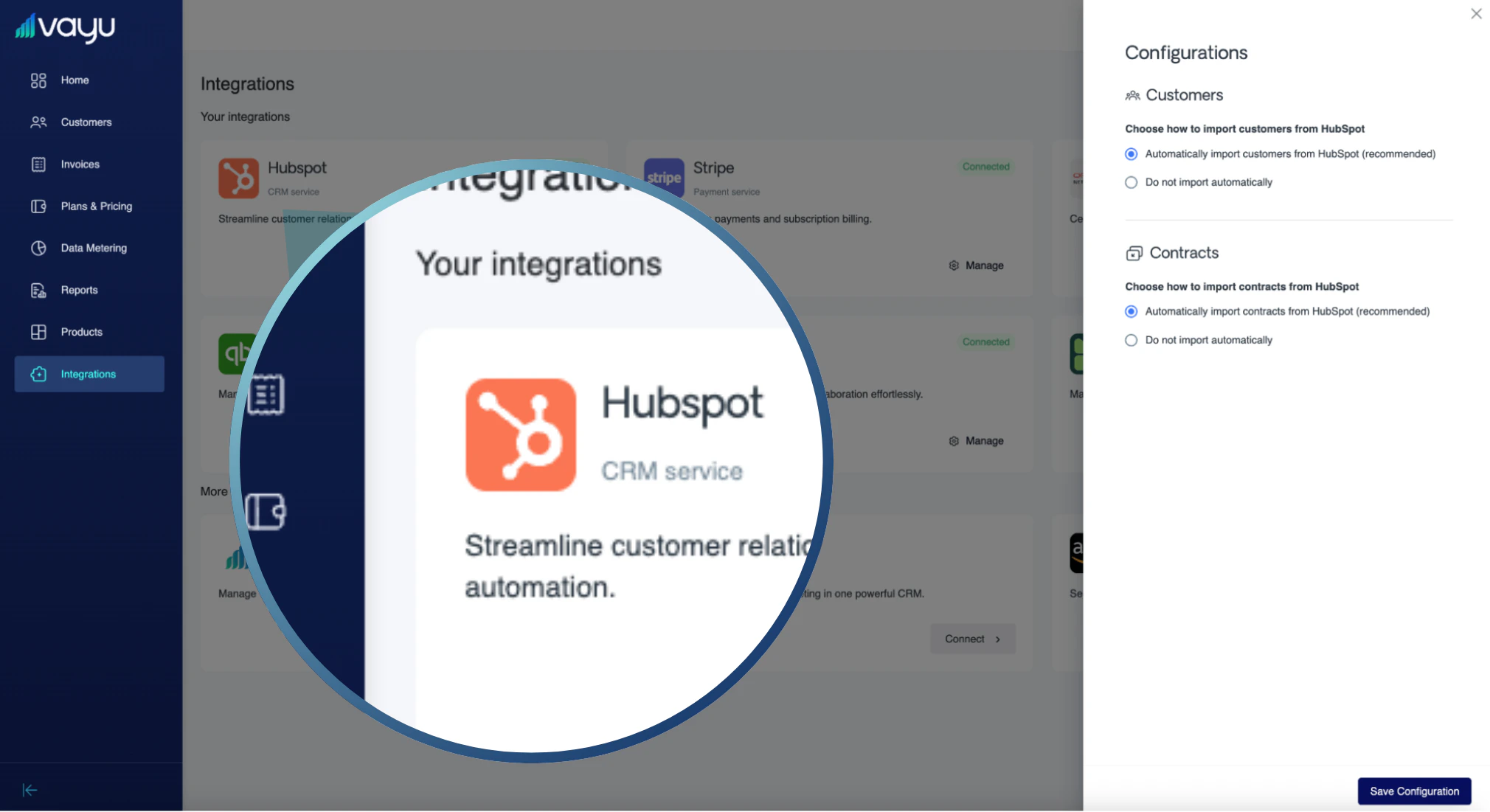 In Vayu, there are two settings in the main integration configuration window to manage.
First, choose whether or not to automatically import customers:
* Automatically import customers from HubSpot (recommended)
* Do not import automatically
Second, choose whether or not to automatically import contracts:
* Automatically import contracts from HubSpot (recommended)
* Do not import automatically
## **Workflow**
Once you have **closed** a deal in HubSpot, it will automatically be pulled to Vayu as a new contract that is available for review.
To see this information, go to the individual customer’s profile. Note that you will be able to see the origin of a customer (and if it originates from a HubSpot sync).
### **Activation Flow**
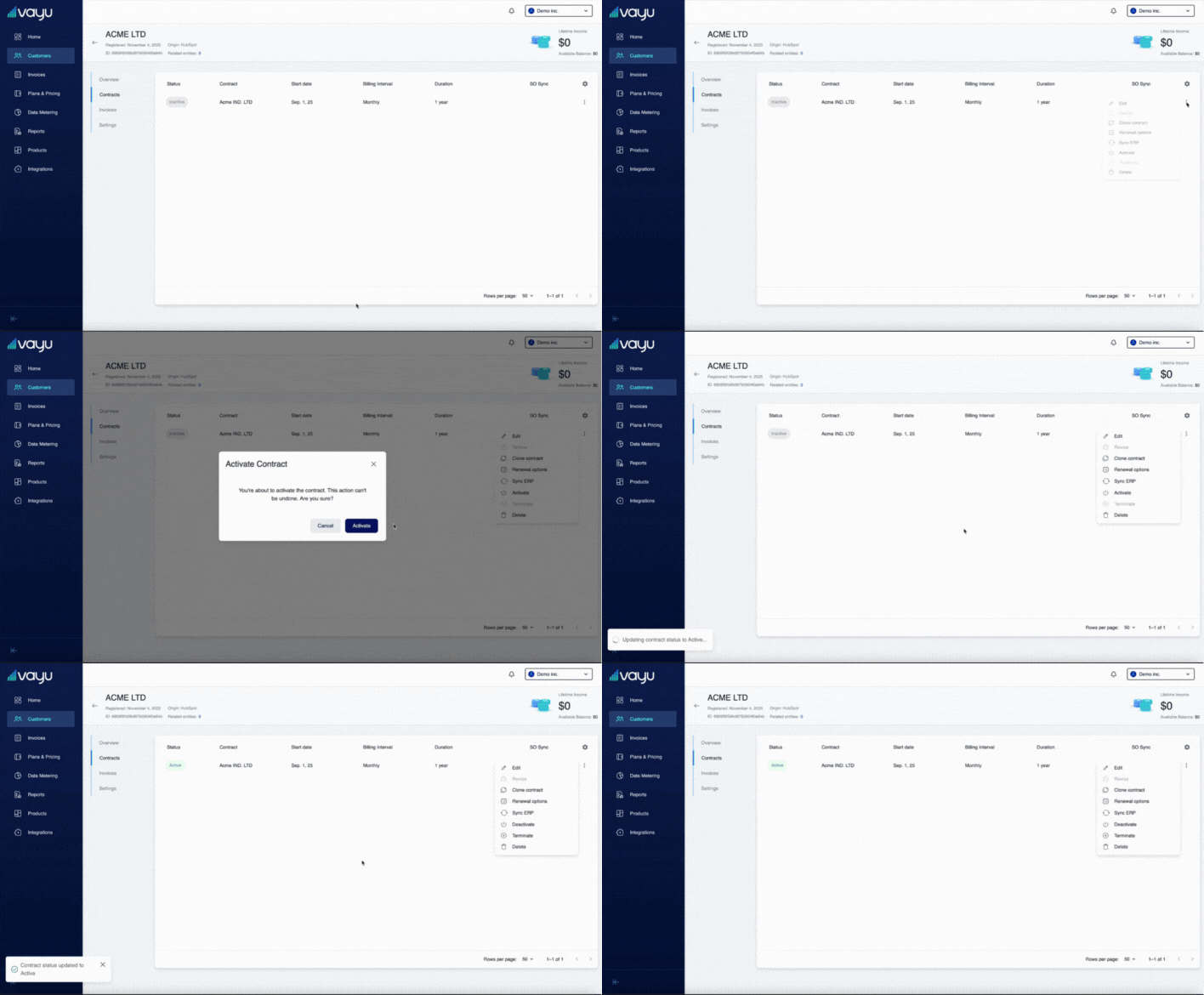
When the contract enters Vayu, it is by default in an *inactive* state. Once you 1) review and 2) activate the contract, it then creates invoices.
In Vayu, there are two settings in the main integration configuration window to manage.
First, choose whether or not to automatically import customers:
* Automatically import customers from HubSpot (recommended)
* Do not import automatically
Second, choose whether or not to automatically import contracts:
* Automatically import contracts from HubSpot (recommended)
* Do not import automatically
## **Workflow**
Once you have **closed** a deal in HubSpot, it will automatically be pulled to Vayu as a new contract that is available for review.
To see this information, go to the individual customer’s profile. Note that you will be able to see the origin of a customer (and if it originates from a HubSpot sync).
### **Activation Flow**
When the contract enters Vayu, it is by default in an *inactive* state. Once you 1) review and 2) activate the contract, it then creates invoices.
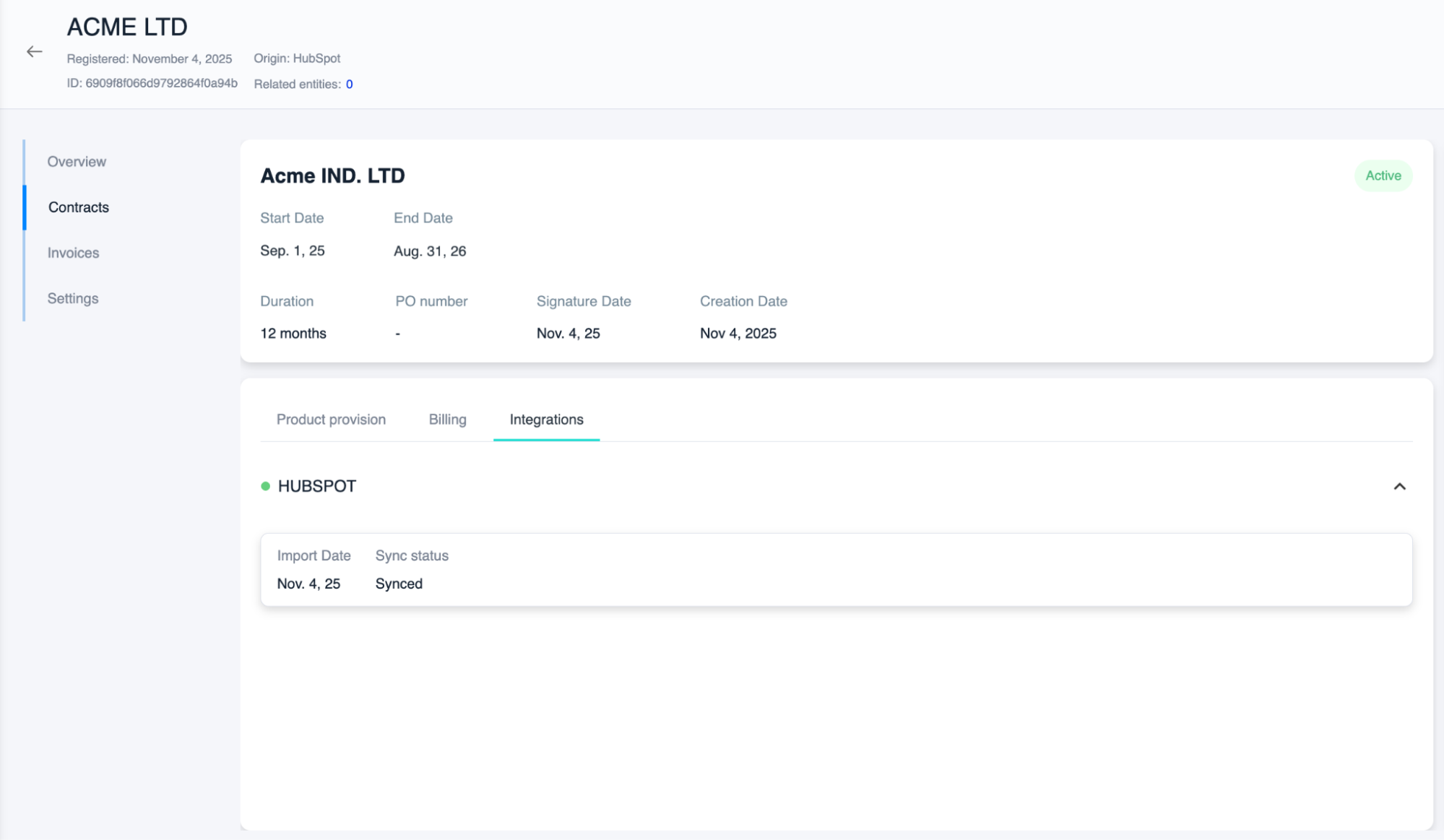
 When you click into the contract itself under **Contracts**, you can see the **Integrations** section (next to **Billing**). This shows everything that happened with the specific integration for this particular contract, plus displays any and all custom fields for that deal.
 Under the **Settings** tab for the Customer, you can also see the **CRM ID** information.