> ## Documentation Index
> Fetch the complete documentation index at: https://guide.withvayu.com/llms.txt
> Use this file to discover all available pages before exploring further.
# Managing Customers
> Create, update, and delete customer records through the UI and API
## Overview
Vayu provides multiple ways to manage customer records, including creating new customers, updating existing profiles, and removing customer data when needed.
## Creating customers
### Through the UI
To create a new customer:
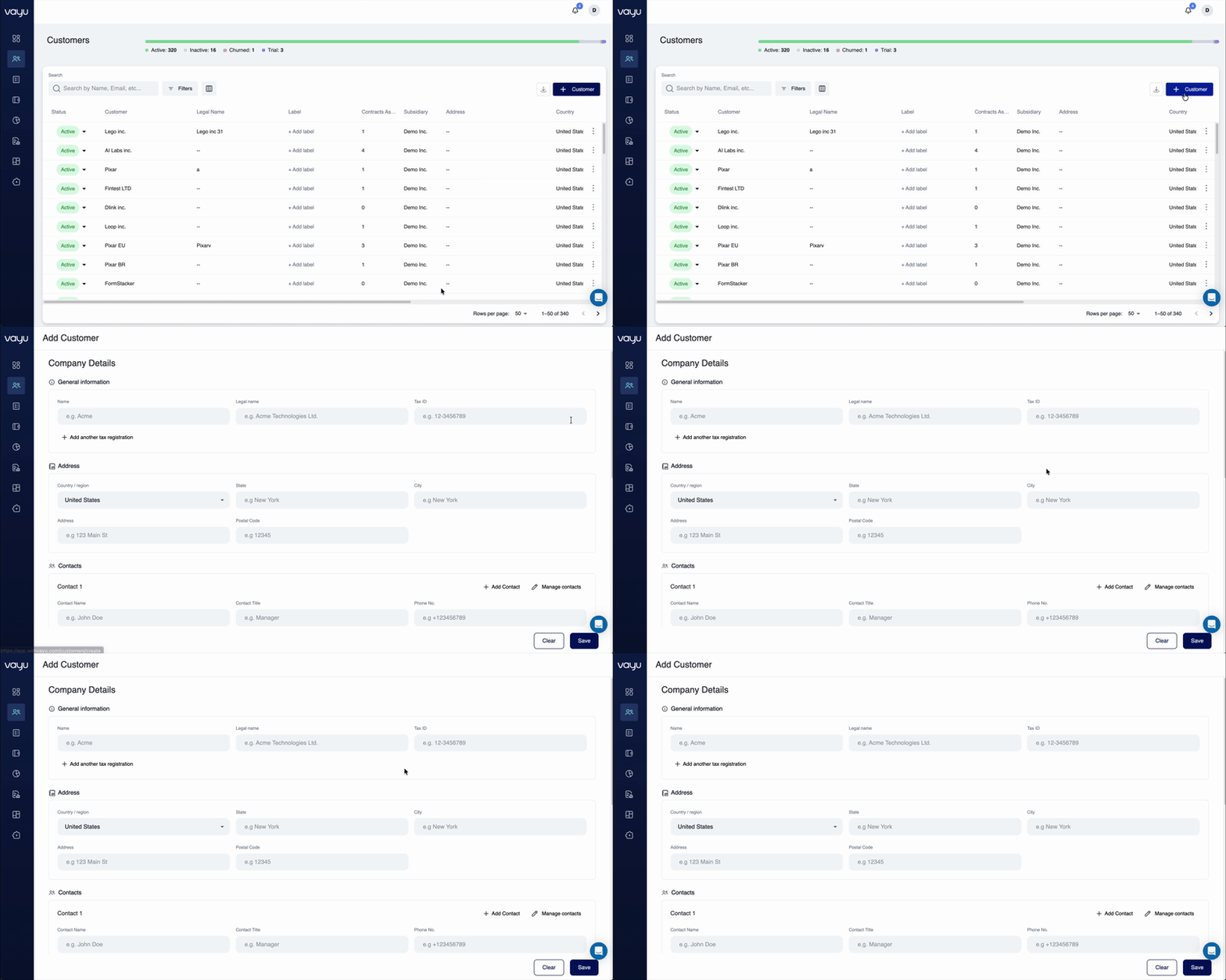 1. Navigate to **Customers**
2. Click **+ Customer** in the control bar
3. Fill in the customer details:
* Name and legal name
* Contact information
* Billing address
* Tax ID
* Currency
* Payment terms (due days)
* Custom fields
4. Save the customer profile
### Through the API
Use the `POST /customers` endpoint to create customers programmatically:
```json theme={null}
{
"name": "Acme Corporation",
"legalName": "Acme Corp Inc.",
"contacts": [
{
"name": "John Smith",
"email": "jsmith@example.com",
"title": "CFO",
"receiveInvoiceEmail": true
}
],
"address": {
"country": "United States",
"city": "San Francisco",
"state": "CA",
"postalCode": "94105",
"addressText": "123 Main Street"
},
"currency": "USD",
"dueDays": "NET_30"
}
```
## **Updating customers**
### **Through the UI**
To create a new customer:
1. Navigate to **Customers**
2. Click **+ Customer** in the control bar
3. Fill in the customer details:
* Name and legal name
* Contact information
* Billing address
* Tax ID
* Currency
* Payment terms (due days)
* Custom fields
4. Save the customer profile
### Through the API
Use the `POST /customers` endpoint to create customers programmatically:
```json theme={null}
{
"name": "Acme Corporation",
"legalName": "Acme Corp Inc.",
"contacts": [
{
"name": "John Smith",
"email": "jsmith@example.com",
"title": "CFO",
"receiveInvoiceEmail": true
}
],
"address": {
"country": "United States",
"city": "San Francisco",
"state": "CA",
"postalCode": "94105",
"addressText": "123 Main Street"
},
"currency": "USD",
"dueDays": "NET_30"
}
```
## **Updating customers**
### **Through the UI**
1. Navigate to **Customers**
2. Click **+ Customer** in the control bar
3. Fill in the customer details:
* Name and legal name
* Contact information
* Billing address
* Tax ID
* Currency
* Payment terms (due days)
* Custom fields
4. Save the customer profile
### Through the API
Use the `POST /customers` endpoint to create customers programmatically:
```json theme={null}
{
"name": "Acme Corporation",
"legalName": "Acme Corp Inc.",
"contacts": [
{
"name": "John Smith",
"email": "jsmith@example.com",
"title": "CFO",
"receiveInvoiceEmail": true
}
],
"address": {
"country": "United States",
"city": "San Francisco",
"state": "CA",
"postalCode": "94105",
"addressText": "123 Main Street"
},
"currency": "USD",
"dueDays": "NET_30"
}
```
## **Updating customers**
### **Through the UI**
To create a new customer:
1. Navigate to **Customers**
2. Click **+ Customer** in the control bar
3. Fill in the customer details:
* Name and legal name
* Contact information
* Billing address
* Tax ID
* Currency
* Payment terms (due days)
* Custom fields
4. Save the customer profile
### Through the API
Use the `POST /customers` endpoint to create customers programmatically:
```json theme={null}
{
"name": "Acme Corporation",
"legalName": "Acme Corp Inc.",
"contacts": [
{
"name": "John Smith",
"email": "jsmith@example.com",
"title": "CFO",
"receiveInvoiceEmail": true
}
],
"address": {
"country": "United States",
"city": "San Francisco",
"state": "CA",
"postalCode": "94105",
"addressText": "123 Main Street"
},
"currency": "USD",
"dueDays": "NET_30"
}
```
## **Updating customers**
### **Through the UI**
 To update an existing customer:
1. Navigate to **Customers**
2. Select the customer from the table
3. Go to the **Settings** tab
4. Modify the fields you need to update
5. Save your changes
### **Through the API**
Use the `PUT /customers/{customerId}` endpoint to update customer records:
```text theme={null}
{
"name": "Updated Company Name",
"dueDays": "NET_45"
}
```
## **Deleting customers**
### **Through the API**
Use the `DELETE /customers/{customerId}` endpoint to remove a customer:
```text theme={null}
DELETE /customers/{customerId}
```
### **Important considerations**
When deleting a customer:
* The deletion is permanent and cannot be undone
* All associated data (contracts, invoices, usage) will be affected
* Consider the impact on historical reporting and audit trails
* Ensure compliance with data retention policies
## **Searching and filtering**
The **Customers** page provides powerful search and filter capabilities:
### **Global search**
Use the search field to find customers by:
* Customer name
* Email address
* Other indexed fields
Results update automatically as you type.
### **Advanced filtering**
Click **Filters** to build complex queries using:
* **Status** - Active, Inactive, Churned, Trial
* **Parent Customer** - Filter by hierarchy relationships
* **Address fields** - Country, State, City, Postal Code
* **Subsidiary** - Filter by subsidiary assignment
* **Manual Review** - Flag status
Multiple conditions can be combined to narrow results.
## **Exporting customer data**
To export customer information:
To update an existing customer:
1. Navigate to **Customers**
2. Select the customer from the table
3. Go to the **Settings** tab
4. Modify the fields you need to update
5. Save your changes
### **Through the API**
Use the `PUT /customers/{customerId}` endpoint to update customer records:
```text theme={null}
{
"name": "Updated Company Name",
"dueDays": "NET_45"
}
```
## **Deleting customers**
### **Through the API**
Use the `DELETE /customers/{customerId}` endpoint to remove a customer:
```text theme={null}
DELETE /customers/{customerId}
```
### **Important considerations**
When deleting a customer:
* The deletion is permanent and cannot be undone
* All associated data (contracts, invoices, usage) will be affected
* Consider the impact on historical reporting and audit trails
* Ensure compliance with data retention policies
## **Searching and filtering**
The **Customers** page provides powerful search and filter capabilities:
### **Global search**
Use the search field to find customers by:
* Customer name
* Email address
* Other indexed fields
Results update automatically as you type.
### **Advanced filtering**
Click **Filters** to build complex queries using:
* **Status** - Active, Inactive, Churned, Trial
* **Parent Customer** - Filter by hierarchy relationships
* **Address fields** - Country, State, City, Postal Code
* **Subsidiary** - Filter by subsidiary assignment
* **Manual Review** - Flag status
Multiple conditions can be combined to narrow results.
## **Exporting customer data**
To export customer information:
 1. Apply any desired filters
2. Click the **Export / Download** button *next* to the **+ Create Customer** button
3. Download the file
## **API reference**
For complete API documentation, see:
* [Create Customer](https://guide.withvayu.com/api-reference/endpoints/customers/create-customer)
* [Get Customer](https://guide.withvayu.com/api-reference/endpoints/customers/get-customer)
* [List Customers](https://guide.withvayu.com/api-reference/endpoints/customers/list-customers)
* [Update Customer](https://guide.withvayu.com/api-reference/endpoints/customers/update-customer)
* [Delete Customer](https://guide.withvayu.com/api-reference/endpoints/customers/delete-customer)
To update an existing customer:
1. Navigate to **Customers**
2. Select the customer from the table
3. Go to the **Settings** tab
4. Modify the fields you need to update
5. Save your changes
### **Through the API**
Use the `PUT /customers/{customerId}` endpoint to update customer records:
```text theme={null}
{
"name": "Updated Company Name",
"dueDays": "NET_45"
}
```
## **Deleting customers**
### **Through the API**
Use the `DELETE /customers/{customerId}` endpoint to remove a customer:
```text theme={null}
DELETE /customers/{customerId}
```
### **Important considerations**
When deleting a customer:
* The deletion is permanent and cannot be undone
* All associated data (contracts, invoices, usage) will be affected
* Consider the impact on historical reporting and audit trails
* Ensure compliance with data retention policies
## **Searching and filtering**
The **Customers** page provides powerful search and filter capabilities:
### **Global search**
Use the search field to find customers by:
* Customer name
* Email address
* Other indexed fields
Results update automatically as you type.
### **Advanced filtering**
Click **Filters** to build complex queries using:
* **Status** - Active, Inactive, Churned, Trial
* **Parent Customer** - Filter by hierarchy relationships
* **Address fields** - Country, State, City, Postal Code
* **Subsidiary** - Filter by subsidiary assignment
* **Manual Review** - Flag status
Multiple conditions can be combined to narrow results.
## **Exporting customer data**
To export customer information:
1. Apply any desired filters
2. Click the **Export / Download** button *next* to the **+ Create Customer** button
3. Download the file
1. Apply any desired filters
2. Click the **Export / Download** button *next* to the **+ Create Customer** button
3. Download the file
## **API reference**
For complete API documentation, see:
* [Create Customer](https://guide.withvayu.com/api-reference/endpoints/customers/create-customer)
* [Get Customer](https://guide.withvayu.com/api-reference/endpoints/customers/get-customer)
* [List Customers](https://guide.withvayu.com/api-reference/endpoints/customers/list-customers)
* [Update Customer](https://guide.withvayu.com/api-reference/endpoints/customers/update-customer)
* [Delete Customer](https://guide.withvayu.com/api-reference/endpoints/customers/delete-customer)
To update an existing customer:
1. Navigate to **Customers**
2. Select the customer from the table
3. Go to the **Settings** tab
4. Modify the fields you need to update
5. Save your changes
### **Through the API**
Use the `PUT /customers/{customerId}` endpoint to update customer records:
```text theme={null}
{
"name": "Updated Company Name",
"dueDays": "NET_45"
}
```
## **Deleting customers**
### **Through the API**
Use the `DELETE /customers/{customerId}` endpoint to remove a customer:
```text theme={null}
DELETE /customers/{customerId}
```
### **Important considerations**
When deleting a customer:
* The deletion is permanent and cannot be undone
* All associated data (contracts, invoices, usage) will be affected
* Consider the impact on historical reporting and audit trails
* Ensure compliance with data retention policies
## **Searching and filtering**
The **Customers** page provides powerful search and filter capabilities:
### **Global search**
Use the search field to find customers by:
* Customer name
* Email address
* Other indexed fields
Results update automatically as you type.
### **Advanced filtering**
Click **Filters** to build complex queries using:
* **Status** - Active, Inactive, Churned, Trial
* **Parent Customer** - Filter by hierarchy relationships
* **Address fields** - Country, State, City, Postal Code
* **Subsidiary** - Filter by subsidiary assignment
* **Manual Review** - Flag status
Multiple conditions can be combined to narrow results.
## **Exporting customer data**
To export customer information:
1. Apply any desired filters
2. Click the **Export / Download** button *next* to the **+ Create Customer** button
3. Download the file